



How to Check Ad-to-Telegram Transitions with Telegram Expert and Avoid Losing Users at the Entry Stage

Hannah
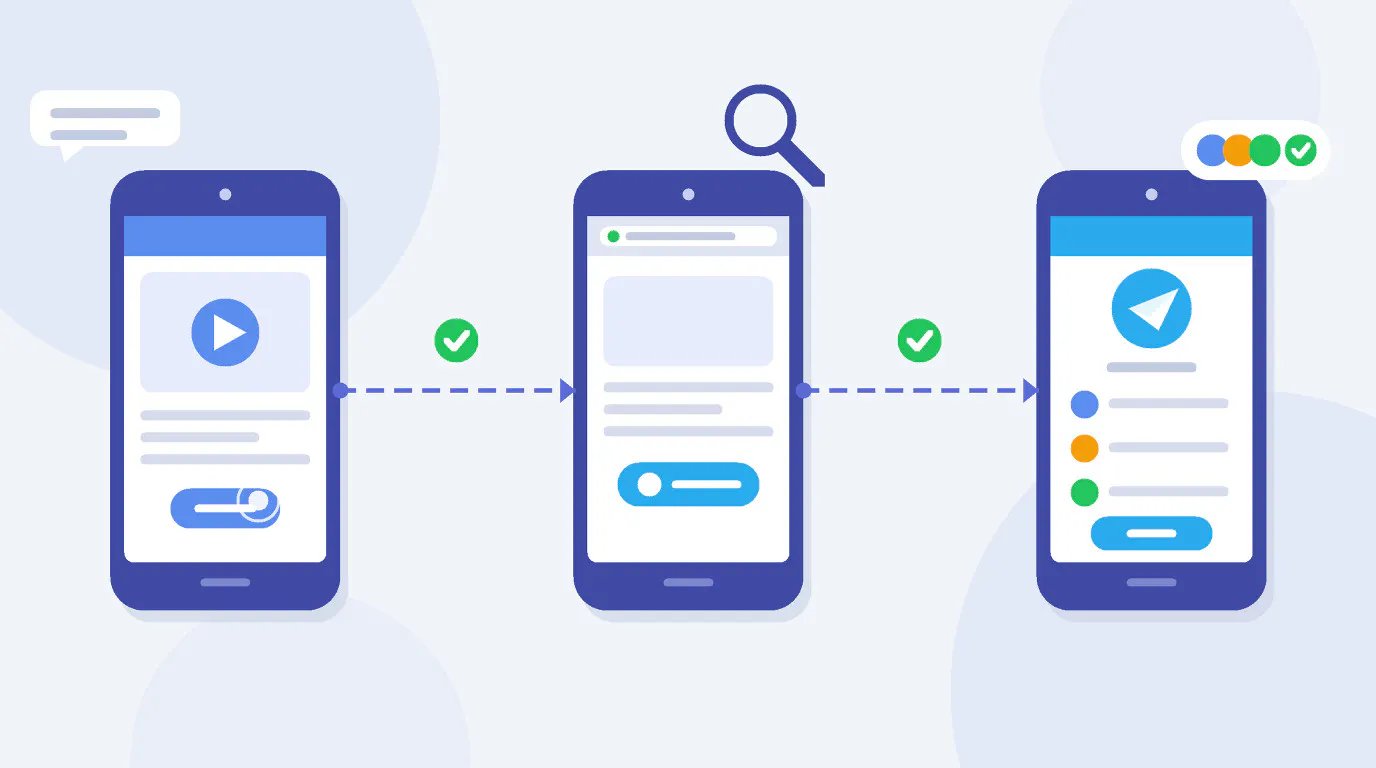
A team launches ads on Instagram, Facebook, or TikTok and sends users to Telegram. Clicks appear in the ad platform, but the number of new channel members or bot inquiries is lower than expected. At the same time, the link opens correctly for employees, so the team starts looking for the cause in the ad itself or the quality of the audience.
The problem may occur before a person even sees the channel. The link passes through the app where the ad is placed, may open in an in-app browser, and only then be handed off to Telegram. Even after a successful transition, the user may still need to join a community, submit a join request, or start a bot.
This article explains how to test this route on a phone, find the point where it breaks, and prepare a backup way to open Telegram. We will also cover invite links, regional connections, and handling inquiries after users enter Telegram.
First, determine where the transition breaks
The easiest way to start is to reconstruct the path a user takes. For an ad that leads to Telegram, it includes several consecutive actions:
- The person taps the link in the ad or another placement.
- The app opens the address in its in-app browser or passes it to the system browser.
- The browser loads a Telegram page or offers to open the installed app.
- The user reaches the required channel, group, or bot.
- The person joins the community, submits a join request, or performs the first action in the bot.
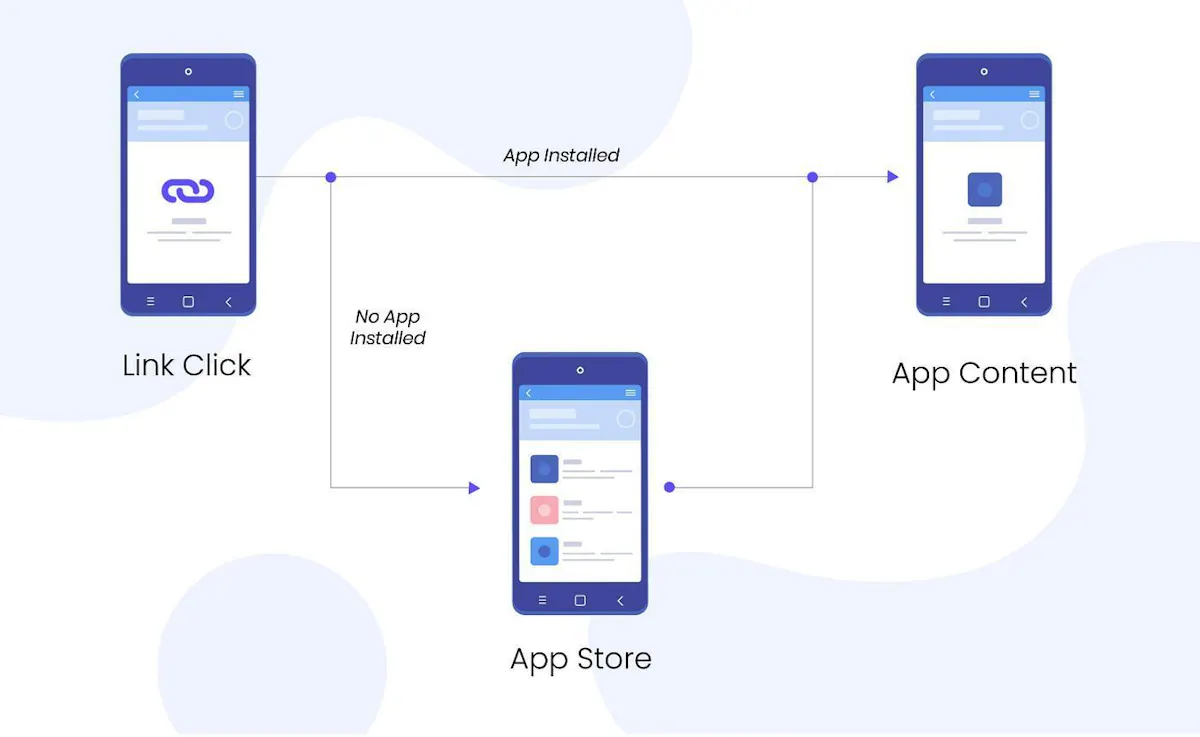
Each stage should be checked separately. For example, the ad platform may record a click while the in-app browser only shows a Telegram preview page and does not open the app. The report will contain a click even though the user has not reached the channel yet.
Another situation is also possible. Telegram opens and the community loads, but the invite link no longer allows the user to join. In that case, the issue should be investigated in the invite-link settings.
The link works in a browser but does not open from the ad
Testing the address in Chrome or Safari shows that the link is accessible when opened directly. However, this does not reproduce the behavior of Instagram Stories, Facebook ads, or another app.
In-app browsers can handle external app links differently. For example, after tapping the link, the user may remain on a Telegram preview page and have to choose an additional option to open it in the app.
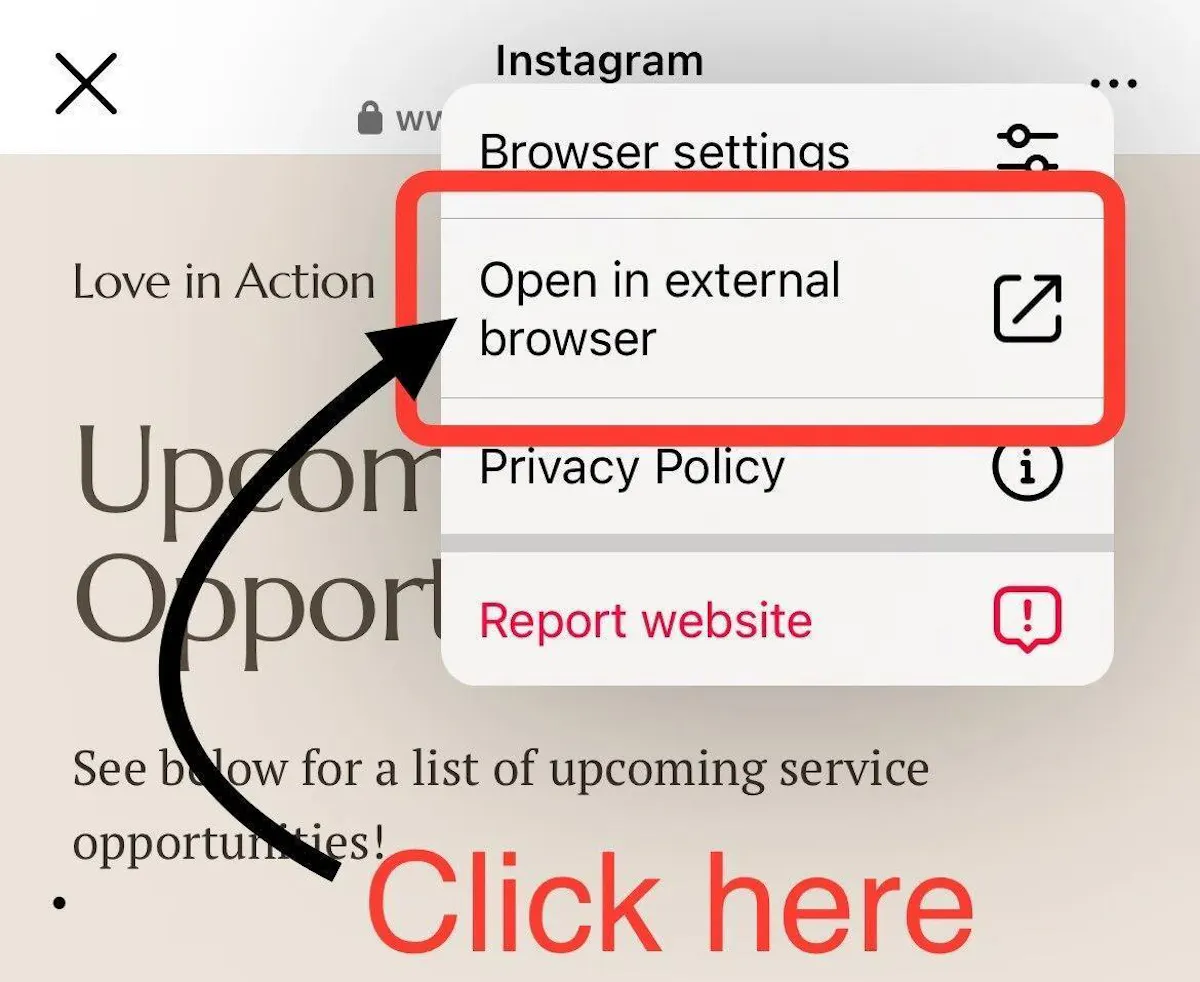
To test a specific placement, open it from another account on a phone. Tap the link and note which screen appears first. Then open the same address in a regular browser.
If the transition works from the browser, repeat the test inside the app where the ad is published. Make sure the address is entered correctly in the placement and that the user can follow it all the way to the final destination.
The Telegram page loaded, but the app did not open
After tapping the link, the user may land on a web page with the channel name and a button to open it in Telegram. Sometimes the transition continues only after an additional action.
First, test a direct link in the format https://t.me/channel_name on Android and iOS devices. If a specific app does not complete the transition, you can test an intermediate page with a clear “Open in Telegram” button.
Such a page introduces its own address and an extra tap. After adding it, repeat the entire route and compare the result with the direct link. If the problem is caused by the way the app handles external addresses, the intermediate page may also open incorrectly.
Telegram opened, but the user did not join
In Telegram, administrators can create additional invite links with an expiration date, a usage limit, or mandatory approval of join requests. An invite can also be revoked.
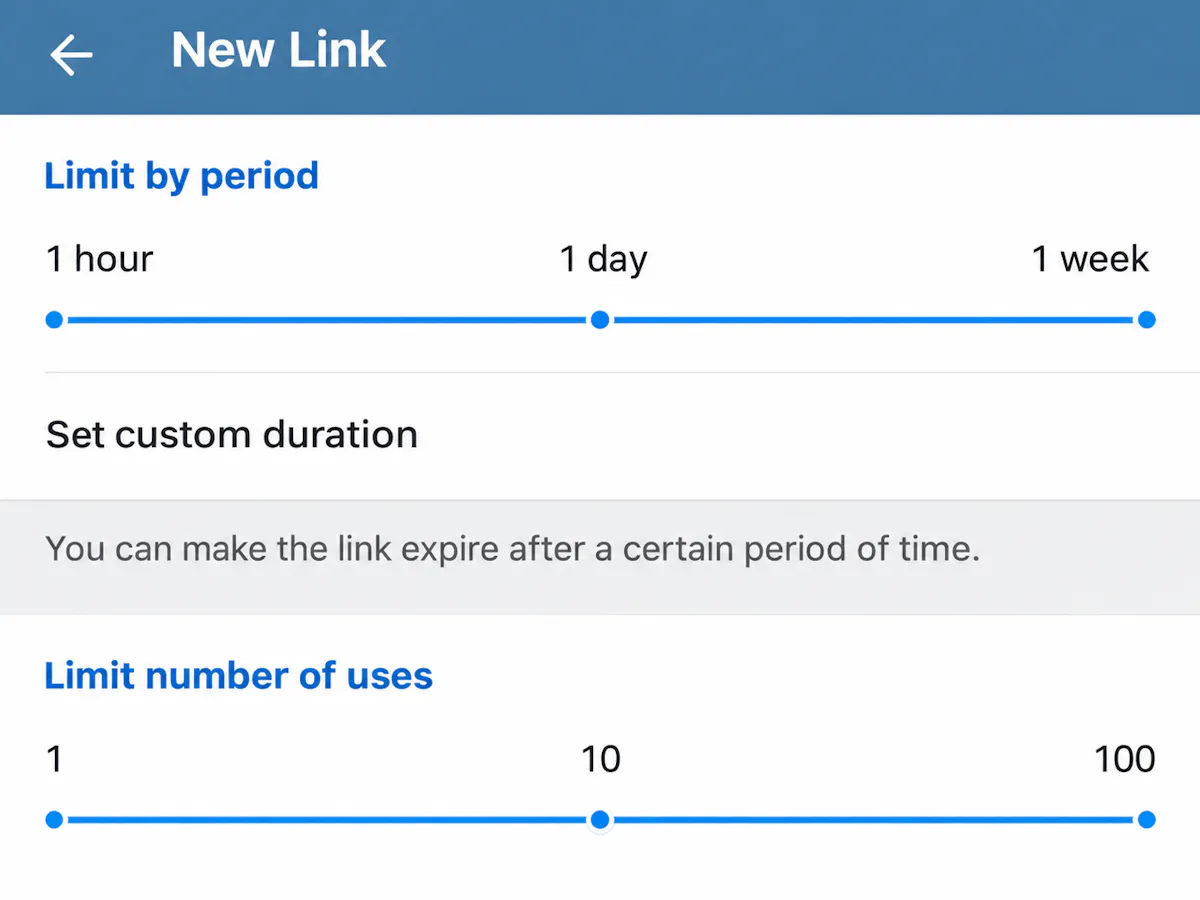
If no new members are joining, check the invite address itself.
Open the channel or group invite-link settings and find the address used in the ad. Check whether it is still active, whether its usage limit has been reached, and whether administrator approval is required.
For the final check, open the invite from an account that is not yet a member of the community. Complete the joining process. If join requests are enabled, make sure the request reaches the administrator and that the user gains access after approval.
This check is especially important when reusing ads. The link may have been created for a previous placement, and its conditions may have changed over time.
How to Test an Ad Link on a Phone Before Launch
Once the possible failure points are known, you can use one consistent testing procedure. For each placement, record the traffic source, the published address, any intermediate pages, and the final destination inside Telegram.
If an error appears, these details will help you compare the current route with the one that was tested before launch.
What happens after the tap | What to check | Next action |
The link does not open from the placement | The address and how it opens inside the app | Fix the placement and tap again |
A browser opens, but Telegram does not launch | Direct transition and behavior on Android and iOS | Test another permitted way to open it |
t.me is unavailable in the browser | Domain availability from different networks | Test a backup address |
The channel opens, but joining is not possible | Invite expiration, usage limit, and join requests | Update the link or process the request |
The transition works, but few users join | Invite data and subsequent actions | Compare the transition stages separately |
It is best to run the check in the following order.
1. Start with the final destination. Make sure the channel, group, or bot is available. Test the active invite and confirm that a new account can complete the required action. If a bot is used, go through its initial flow.
2. Open the published placement. Use a test ad, an available preview, or an already published placement. Tap the link directly inside the app. Record which screen the user reaches and whether any extra actions are required.
3. Repeat the transition on Android and iPhone. This is especially useful if both platforms are part of the campaign’s target audience. Record the app, device, address, and test result. If the behavior differs, reproducing the issue will be easier.
4. Check availability from the target region. If the campaign targets users in several countries, also verify whether the link and any intermediate page open through connections from the required regions.
For regional testing, you can use Proxied mobile proxies. The service operates as a marketplace: users choose connections from providers based on available locations and parameters. This makes it possible to test network access to an address through a mobile IP from the selected country.
For example, if the ad leads to your own intermediate page, you can connect to an available mobile proxy in the required region and test whether the page loads. Then repeat the transition on a real phone inside the app where the ad will be placed. This approach checks both regional availability and the behavior of the link when tapped.
5. Complete the final action. Join the channel, submit a join request, or start the bot. Make sure the result appears where the team expects to see it.
After changing an address or redirect setting, repeat the test from the published placement. This can reveal errors that do not appear when the final link is simply copied into a browser.
Prepare a Backup Route in Case t.me Is Unavailable
On July 13, 2026, users experienced a widespread outage of Telegram short links on the t.me domain. The addresses stopped opening in regular browsers, although links inside the messenger itself continued to work. Access to the domain was restored on July 14.
This incident showed why Telegram functionality and the availability of external links should be checked separately.
During the incident, TG Tracker changed the routes of active campaigns, replacing page openings through t.me with telegram.me. This allowed the service to preserve access to Telegram through an alternative address.
Telegram documentation includes several link formats, including t.me, telegram.me, and telegram.dog. However, using another domain still requires testing on the specific platform where the ad is placed.
If an external address stops working, proceed step by step.
First, determine the scope of the problem. Open the link in a regular browser, then test it through another network. Try opening the same channel from inside Telegram. If the internal transition works but external requests to the domain fail, check the availability of the domain itself.
Then test an alternative address. For a public-channel link, you can try the same route through telegram.me. Keep the channel name, group name, or other required identifier available. If an invite link is used, it is especially important to verify final access from a new account.
Go through the entire route. Open the backup link from the app where the ad is published. Test it on the required devices and make sure the user actually reaches the final destination.
After a successful test, update links in ads, profiles, and your own pages where editing is possible. If an active placement cannot be changed and the route remains unavailable, it may be reasonable to pause spending on it.
When access is restored, check the statistics as well. In the TG Tracker case, after the routes were changed there was a temporary delay in sending event data back to advertising systems, so a working link did not mean that all reporting would recover immediately.
How to Distinguish Ad Clicks from Actual Joins
Even when the transition works perfectly, ad-platform metrics and Telegram metrics can differ. Tapping an ad, opening a channel, and joining it are separate actions.
For example, a user may open the channel, read several posts, and close the app. The ad platform will record a click, but no new member will appear in Telegram.
To evaluate transitions correctly, decide in advance which events the team can track.
Separate Invite Links for Different Placements
Telegram allows administrators to create multiple links for the same channel or group. An administrator can see which users joined through a specific invite.
This is useful when ads are running on several platforms.
For example, one invite link can be created for an Instagram placement and another for advertising on a different platform. Both lead to the same community, but they make it possible to distinguish joins by the invite that was used.
Before launch, make sure each link is active and placed in the correct ad. You can then compare transition data from the ad platform with joins through the corresponding invite.
Links with Parameters for Telegram Bots
Bots use a different mechanism. A start parameter can be added to the address and passed to the bot after the user launches it.
For example:
https://t.me/your_bot?start=instagram
After the user taps the Start button, the bot receives a command with the corresponding parameter. It can be used to select an initial flow or identify the launch source if the bot is configured to process it.
Opening the link and starting the bot are still separate actions. To test the setup, go through the route from a new account and make sure the bot receives the required parameter and runs the expected flow.
Separate tracking is especially useful when the advertising route changes. If joins resume after the link is fixed while the number of ad-platform clicks remains the same, the team can see what changed at the specific stage.
Check the Entry Point and Prepare Inquiry Handling in Telegram Expert
Once the transitions have been tested, the next step is to prepare the work inside Telegram itself. Teams that manage several channels, projects, and work accounts face especially many repetitive operations.
Employees have to check community links, monitor the accounts in use, watch incoming messages, and answer recurring questions. As the number of projects grows, these tasks become a separate part of the daily workload.
For these tasks, you can use Telegram Soft Expert. It is software for managing Telegram accounts and automating operations in the messenger. It includes tools for checking links, working with accounts and proxies, managing open dialogs and messages, and generating operation reports.
Checking Community Links
Before launching an ad, it is useful to collect the addresses of all channels and groups in use. This is especially relevant for projects that use several accounts and multiple audience sources at the same time.
Telegram Expert includes a link-checking function for working with Telegram data.
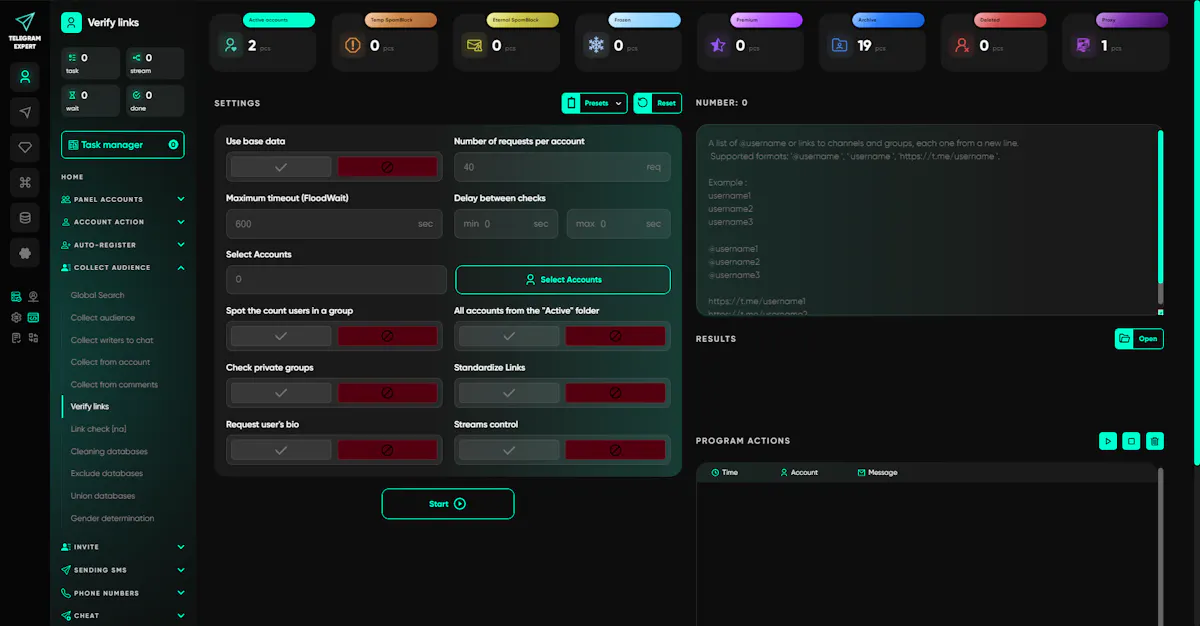
This check can be included in the preparation of working data. First collect the community addresses, then check them in the program. After the results are processed, separately go through the user route on a phone, including joining through the invite link.
This helps prepare Telegram data before launch and provides an additional check that the invites work correctly for new members.
Managing Work Accounts and Connections
If a team uses several Telegram accounts to handle inquiries and projects, it is convenient to organize them in one workspace.
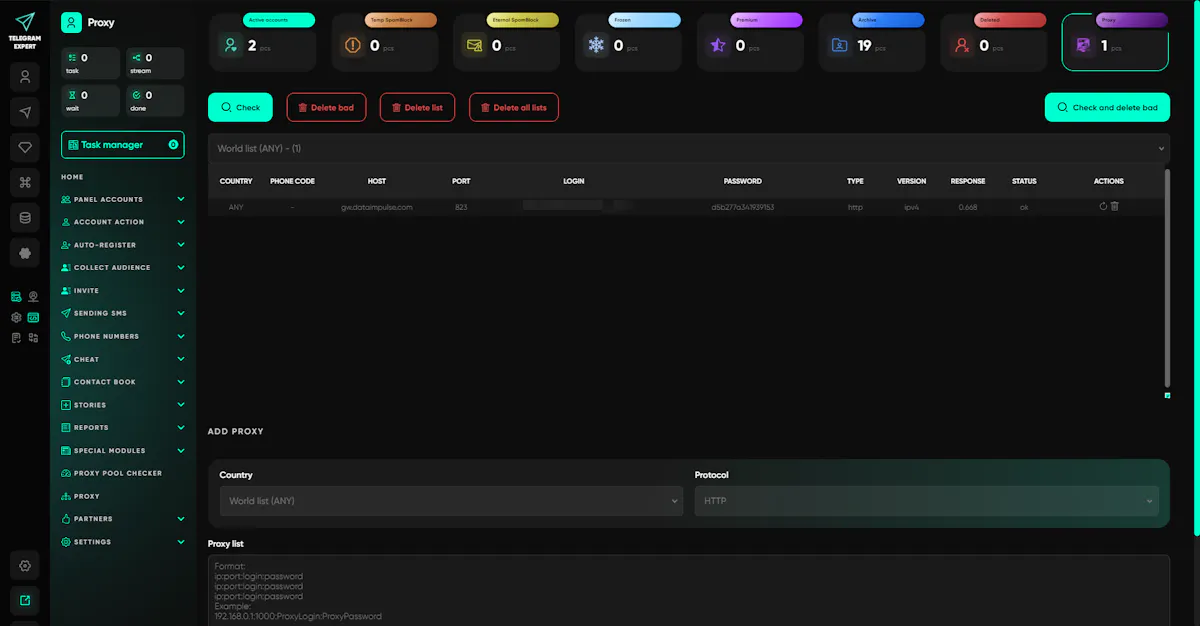
Telegram Soft Expert supports account management and proxy workflows. The program also includes a tool for checking proxy connections. These functions relate to preparing and operating the Telegram accounts themselves.
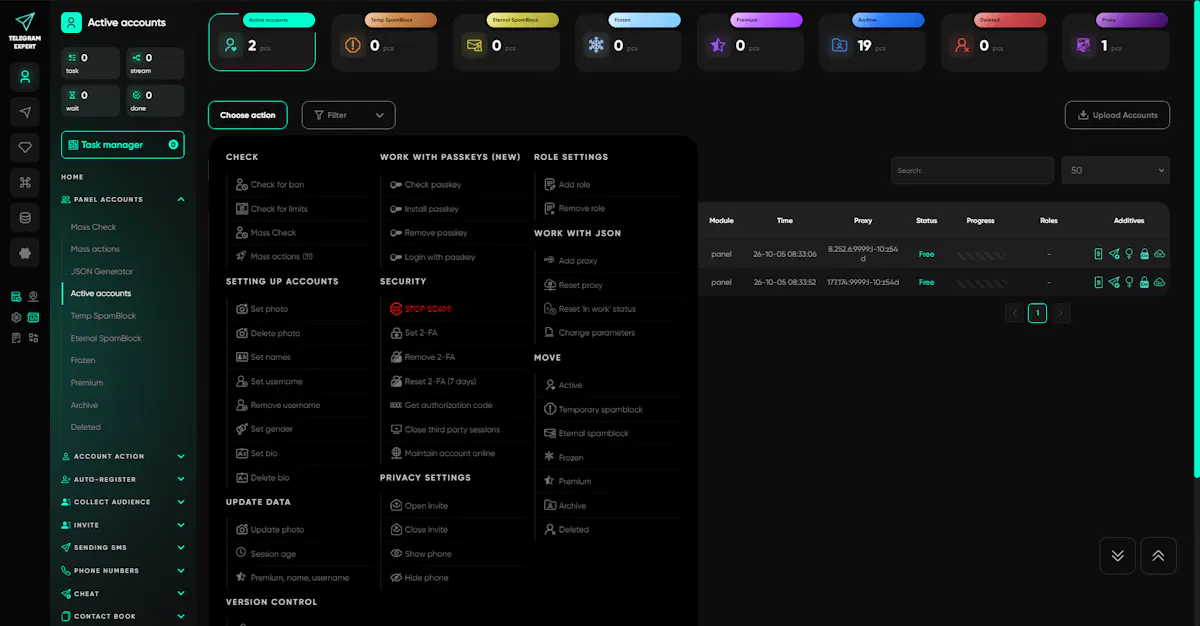
If mobile proxies are used, first choose a connection with the required parameters, then add it to the working configuration and check that it is available.
After the accounts are prepared, you can move on to message handling. This approach is especially useful when a team has several operators and each of them needs to work with their own dialogs.
Working with Incoming Messages
After a successful ad transition, a user may message a work account. As the number of inquiries grows, manually reviewing dialogs and repeating the same answers takes more and more time.
Telegram Expert includes tools for working with open dialogs and an autoresponder. In 2026 program updates, the developers described a redesign of these tools, including cyclic task execution and stop conditions.
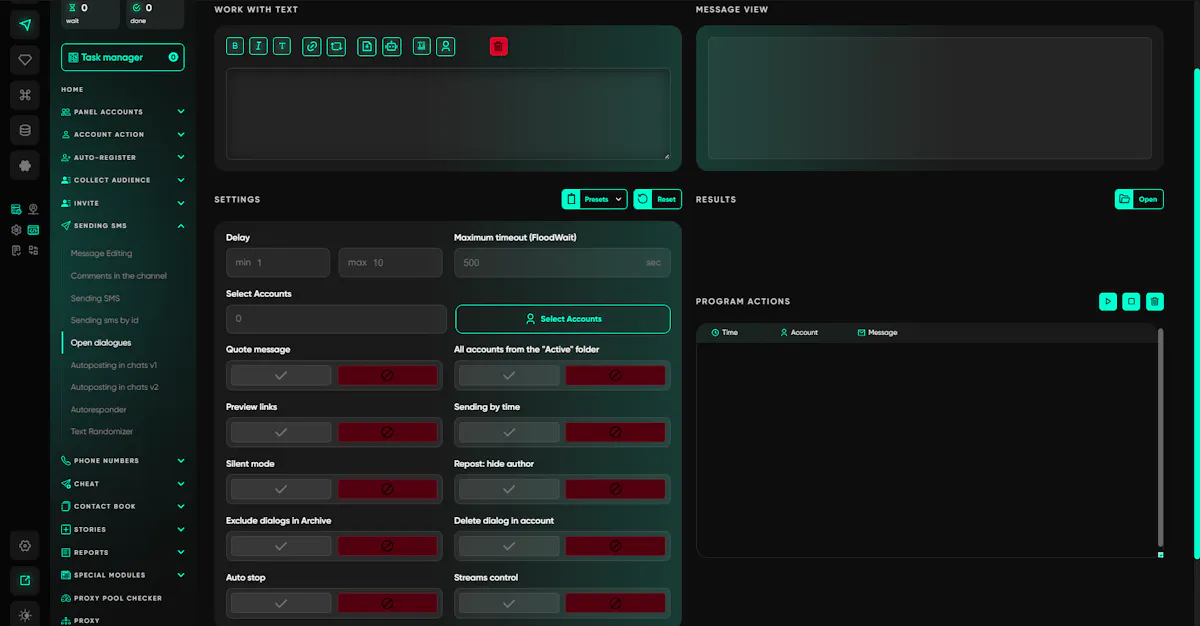
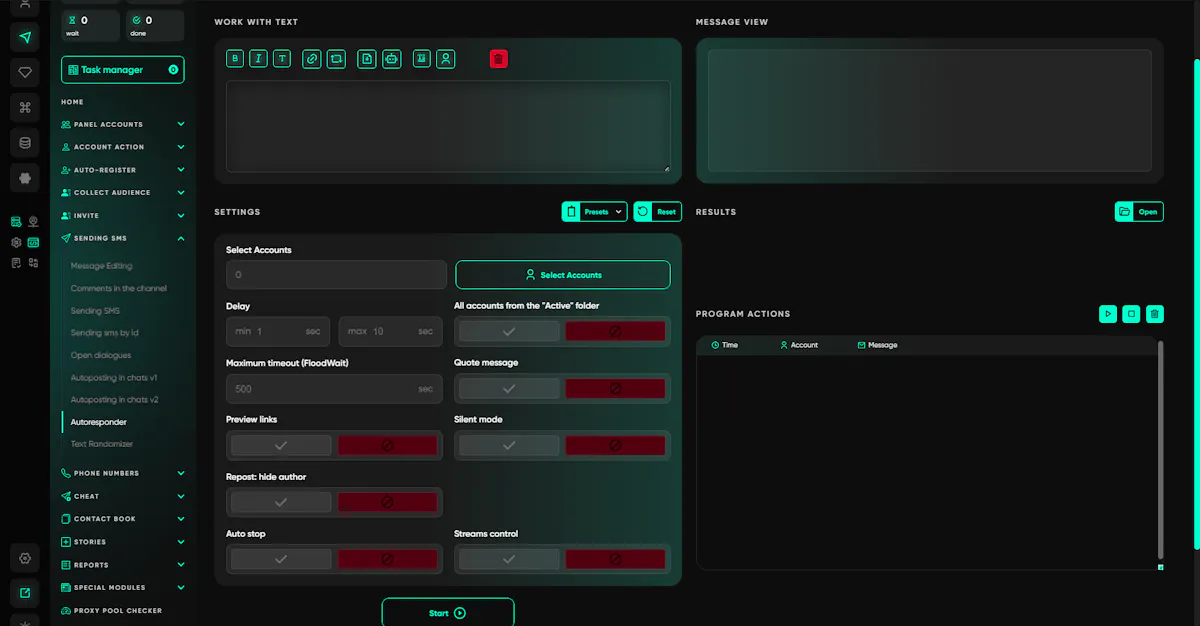
For practical use, first determine which messages the team receives regularly and which answers can be prepared in advance. Then configure the appropriate handling scenario in the program and test it in a test dialog.
For example, if users ask about participation terms for a project, you can prepare a standard answer with the necessary information. After setup, check that the incoming message is received, the reply is sent, and the dialog ends in the expected state.
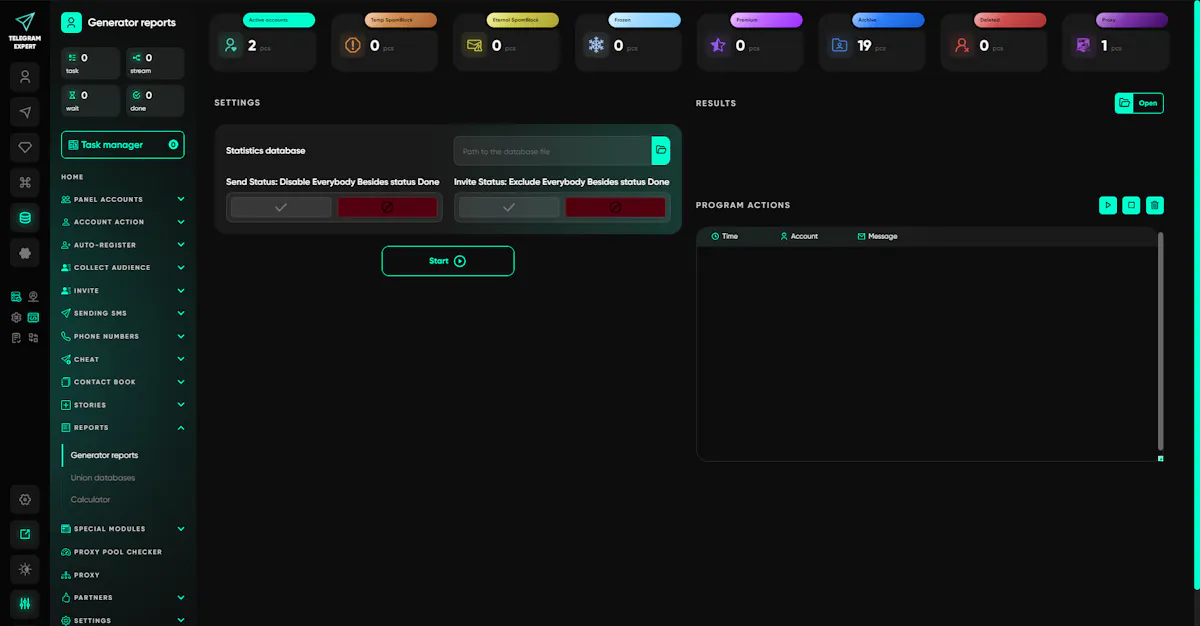
Message-processing results can be analyzed through Telegram Expert reports. To evaluate an advertising launch, it is useful to compare them with ad-platform data and join statistics.
What to Check Before the Next Telegram Ad Launch
Before publishing a new ad, it is useful to run a short checklist:
- The final link works. The channel, group, or bot opens, and a new user can complete the required action.
- The transition works from the ad source. The link has been tested by tapping it inside the app where the ad will be placed.
- Devices have been tested. On Android and iPhone, the transition ends with the expected result if both platforms are part of the target audience.
- Regional access has been tested. When launching in specific countries, the availability of the external address and any required intermediate pages has been confirmed.
- The results can be compared. The team knows where to check clicks, joins, bot starts, and inquiries.
After launch, save information about the links used and the dates when they were tested. If discrepancies appear, start by going through the route again and then compare the result with the previous successful test.
This makes it possible to determine whether a change in performance is related to the availability of the external link, Telegram entry settings, or user actions already inside the channel or bot.