



Common Proxy Connection Errors: Causes and Quick Fixes

David
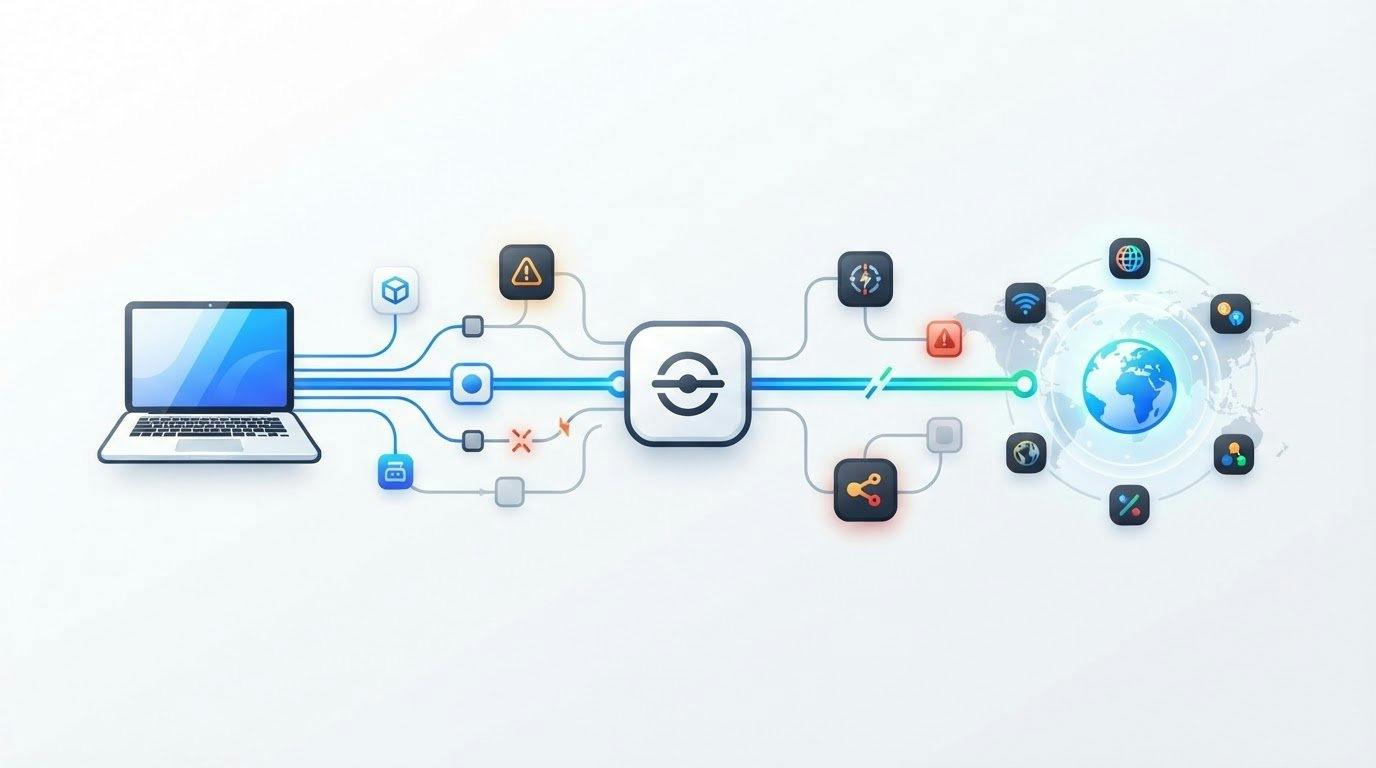
A proxy error doesn’t automatically mean the proxy is at fault. It means a request failed somewhere between your device, the proxy, and the destination. Common proxy connection errors can stem from incorrect settings, a proxy server, a network connection, or the target website. The error message and response code help identify which part to investigate first.
A failed connection is frustrating, especially when the error message offers little guidance. You can narrow down the cause without changing settings at random. This guide explains common proxy errors, including authentication failures, timeouts, and gateway responses, and shows how to troubleshoot each one. You’ll learn to trace the issue across your device, proxy, and destination so your next step is based on where the failure occurred, not guesswork.
Key Takeaways
- Read the error code before changing settings: it can point to authentication, the destination, or a server-side failure.
- Check proxy address and credentials, then test the connection again to catch configuration issues early.
- Separate browser tunnel failures from gateway responses by identifying which network hop stopped responding.
- A 502 means a gateway received an invalid upstream response; a 504 means it didn’t receive a timely one.
- Use the error message and connection symptoms to choose a targeted fix instead of retrying blindly.
How Can I Quickly Fix a Proxy Connection Problem?
Start with the exact error message, then test your device, proxy, and destination separately. A status code or connection failure can point to the network stage that needs attention.
HTTP Status Codes
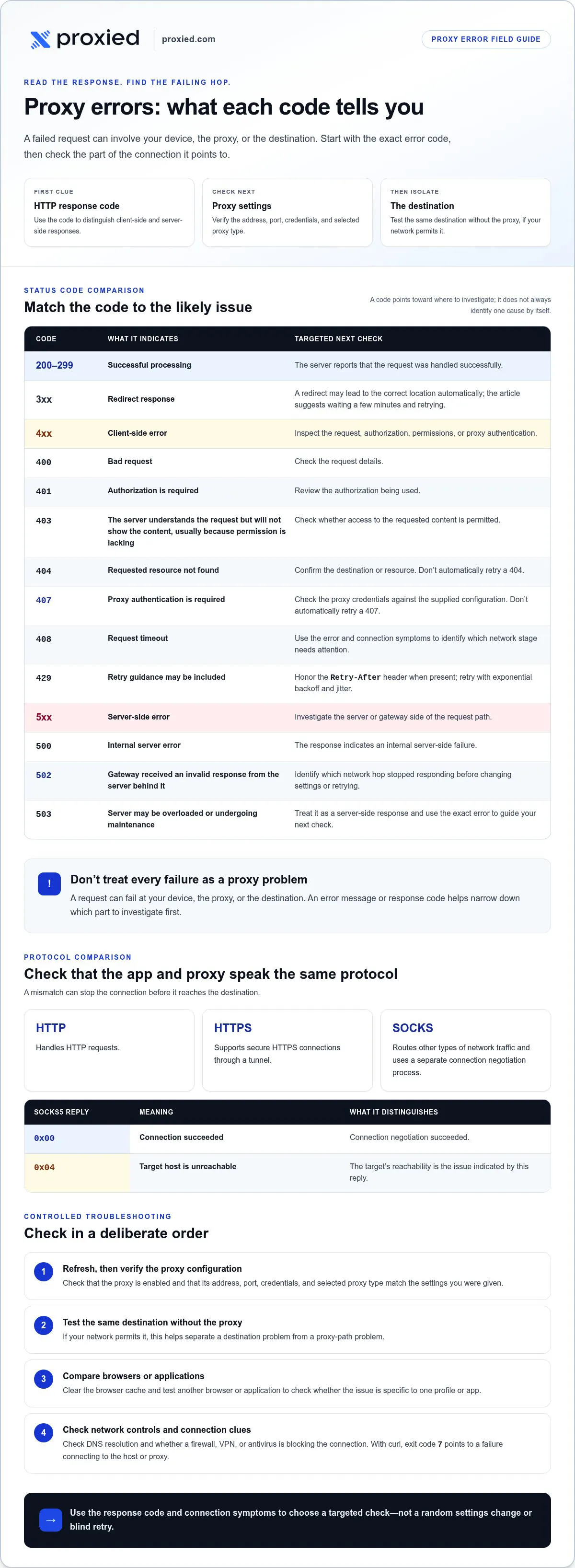
HTTP status codes are server responses that describe how a request was handled. Codes from 200 through 299 indicate successful processing, while 3xx codes indicate redirects, 4xx codes indicate client-side errors, and 5xx codes indicate server-side errors.
Use the code to choose a fix: 407 means proxy authentication is required, while 401 means authorization is required. A 404 means the requested resource wasn’t found; 408 indicates a request timeout. For 429, honor the Retry-After header when present and retry with exponential backoff and jitter. Don’t automatically retry 407 or 404 errors.
Quick Troubleshooting Steps
Troubleshoot in a controlled order, starting with the most likely causes. Refresh the page, then check that the proxy is enabled and that its address, port, and credentials match the settings you were given.
- Test the same destination without the proxy; this helps separate a destination problem from a proxy-path problem.
- Clear the browser cache and try again, then test another browser or application.
- Check DNS resolution and confirm your firewall, VPN, or antivirus isn’t blocking the proxy connection.
- If using curl, exit code 7 points to a failure connecting to the host or proxy.
Incorrect proxy settings, such as a mistyped address, port, or login, can prevent a connection or authentication. Compare each field with the supplied configuration and verify the selected proxy type. DNS may fail to resolve a host, firewall or antivirus rules may block traffic, and a VPN may change the route or interfere with proxy settings.
Contact your proxy provider if the connection still fails after you’ve checked the settings and credentials, or if the proxy endpoint appears unreachable. Ask your network administrator for help if the problem affects multiple users or follows changes to the firewall, DNS, or VPN.
Proxy Type Connection Errors
Proxy type errors occur when an application’s connection method doesn’t match the proxy protocol. HTTP proxies handle HTTP requests; HTTPS proxies support secure HTTPS connections through a tunnel. SOCKS proxies route other types of network traffic and use a separate connection negotiation process.
Check the protocol selected in the application against the proxy configuration. An HTTP connection aimed at a SOCKS endpoint, for example, may fail before reaching the destination. With SOCKS5, reply code 0x00 means the connection succeeded; 0x04 means the target host is unreachable. These replies help distinguish protocol negotiation from destination reachability.
Common Error Meanings
Common error meanings describe which part of a request failed, rather than identifying one cause in every case. A 400 means the request is bad, and 403 means the server understands it but won’t show the content, usually because permission is lacking.
A 500 indicates an internal server error; 503 can mean the server is overloaded or undergoing maintenance. A 502 means a gateway received an invalid response from the server behind it. For a 3xx redirect, wait a few minutes and retry; the redirect may lead to the correct location automatically. Match the code to the failing hop before changing settings or retrying.
Browser tunnel connection failures
A browser tunnel failure occurs when the browser can’t establish a secure connection through its proxy. For HTTPS sites, the browser asks the proxy to create a tunnel, then negotiates encryption with the destination. A failure at either step can prevent the page from loading.
Chrome may show ERR_TUNNEL_CONNECTION_FAILED when it can’t complete the proxy connection. First, open another HTTPS site in the same browser profile. If every site fails, inspect the browser’s proxy configuration or check for a network-level block. If only one destination fails, the issue may involve that host, its certificate, or its availability.
A tunnel error can also indicate a mismatch between the browser and proxy settings. Confirm the proxy address, port, protocol, and any required authentication. If the browser is set to use an HTTP proxy but the endpoint expects SOCKS, the connection may fail before a tunnel forms. Test the same configuration in another browser to see whether the issue is browser-specific or affects the wider network.
TLS errors offer another useful clue. A tunnel may form, but the browser can still reject the destination’s certificate or an unexpected certificate presented along the route. Read the exact browser warning before changing security settings. Don’t bypass a certificate warning just to load the page, especially if you plan to enter account details.
Public proxies aren’t automatically more failure-prone or unsafe, but shared access and an unknown operator can make connection quality and data handling less predictable. Avoid sending sensitive information through a proxy unless you trust how the connection is managed.
Use this sequence to isolate the failure:
- Try the destination without the proxy, if your network permits it.
- Try another HTTPS destination through the same browser and proxy.
- Compare the browser’s proxy settings with the configured endpoint and protocol.
- Temporarily test another browser profile, which can reveal an extension or profile-specific setting.
- Record the exact error text and whether other devices on the same network can connect.
If one browser fails while another works, focus on the browser’s settings, extensions, or cached connection data. If browsers and devices fail on the same network, check network controls or ask the administrator to review proxy access. If the issue affects one destination across networks, investigate that destination instead of repeatedly changing browser settings.
For recurring tunnel failures, compare the route and protocol against your connection setup using proxy connection guidance.
Gateway errors and timeouts (502 and 504)
A gateway error means an intermediary, such as a proxy, couldn’t complete its exchange with an upstream server. The response code can distinguish an invalid upstream reply from a delayed one, but it doesn’t prove the proxy caused the failure.
502 Bad Gateway
A 502 Bad Gateway response means a gateway or proxy received an invalid response from the server behind it. The upstream website could be down for an unrelated reason, or it could have returned a response the gateway couldn’t use.
Compare the same destination through another route, such as a direct connection if available, or another proxy network. If the destination fails through both routes, investigate the website or its server. If only one route returns 502, focus on that route’s gateway, proxy endpoint, or IP. Record the time, destination, and response code; those details help distinguish a recurring route issue from an isolated failure.
504 Gateway Timeout
A 504 Gateway Timeout response means a gateway or proxy didn’t receive a timely response from the upstream server. Unlike a 502, the key clue is delay, not an invalid reply.
Check whether the timeout affects one destination or several. A single failing site points to that site or its upstream services; failures across destinations may indicate a shared network path or overloaded gateway. If a page starts loading before timing out, note whether it stalls during connection setup or while waiting for content. This can help locate the slow stage.
How to diagnose a gateway response
Use the response pattern to choose your next test instead of changing several settings at once. Compare the same request across routes and destinations, keeping the browser, request, and network conditions consistent.
- One destination returns 502 or 504 across routes: inspect the destination’s availability and response behavior.
- Several destinations fail through one route: investigate that proxy or gateway path.
- Only one network or IP type fails: test a different proxy network and IP type to isolate the route.
- A 504 follows a long wait: record the delay and identify where the request stops progressing.
For recurring 5xx errors, rotating IPs, changing the proxy network or IP type, or using a residential proxy network can help test whether the route is involved. Treat each change as a diagnostic step: change one factor, retry the same request, and compare the result.
Retrying safely
Retrying means sending the failed request again after a delay, rather than repeating it immediately. For 5xx responses, honor the Retry-After header when present; otherwise, exponential backoff with jitter spaces retries and avoids synchronized bursts.
Keep a brief log of the code, destination, route, and retry result. If a 502 changes to success after switching routes, the original path deserves investigation. If a 504 persists across routes, the destination or its upstream response time may be the limiting factor.
Identifying which network hop caused a proxy error
A network hop is one stage of the connection between your device and the destination website. To locate a failure, compare results from each stage instead of changing multiple settings at once. A browser message alone may not identify the failing hop, so note the error code, destination, and whether other sites work.
Device to local network
The first hop connects your device to its local network, such as Wi-Fi or Ethernet. If your network allows it, test the same destination with the proxy disabled. If the direct connection also fails, check local connectivity, DNS, firewall rules, or VPN settings before focusing on the proxy.
Next, compare another browser or device on the same network. If one browser fails but another works, inspect the failing browser’s proxy configuration and extensions. If multiple devices fail on the same Wi-Fi network, ask the network administrator to review shared DNS or firewall controls. An issue affecting every device points to a different layer than a browser-only failure.
Device to proxy
The device-to-proxy hop is the connection from your application to the proxy endpoint. A connection refusal or curl exit code 7 indicates failure to connect to the host or proxy, which makes this hop an important place to test.
Compare the configured hostname, port, and protocol with the proxy settings in your application. Then test another application on the same device, keeping the endpoint unchanged. If both applications fail before receiving a proxy response, check local routing or endpoint reachability. If one succeeds, focus on the failing application’s configuration.
Proxy to destination
The proxy-to-destination hop begins after the proxy accepts your connection and forwards the request. A 502 means the gateway received an invalid upstream response; a 504 means it didn’t receive a timely response.
Test a second destination through the same proxy, then test the original destination through a different route if available. If only one site fails across routes, the destination may be the common factor. If several sites fail through one proxy route, investigate that route. Curl exit code 56 indicates a failure receiving network data, but compare it with the request’s timing and response before assigning blame.
Build a simple comparison
A comparison test changes one connection factor at a time and records whether the result changes. Where possible, use the same device, destination, and request, switching only the route or application for each test.
- Record the exact error text, response code, and destination.
- Try another destination through the same proxy.
- Try the original destination through another route or application.
- Compare results across devices on the same network.
These results help narrow down the likely network hop, but no single code proves the cause. If the failure persists, share your test outcomes with your network administrator or proxy provider, including whether it affects one destination, one application, or every device.
What are the most common proxy connection errors and what do they mean?
Proxy error codes describe how a request failed, but the code alone doesn’t always identify the faulty network hop. Common proxy connection errors can indicate authentication problems, request formatting issues, a destination failure, or an intermediary server problem. Read the response first, then match its meaning to your next troubleshooting step.
Authentication and access errors
Authentication errors can mean that the proxy or destination requires valid credentials or authorization. A 403 means the server understood the request but can’t show the requested content, usually because permission is lacking.
For 407, compare the proxy username and password with the configured credentials. Don’t keep retrying unchanged credentials; automatic retries won’t correct an authentication problem. For 401 or 403, check whether the destination requires a valid account or permission. A working proxy connection can still receive these responses from the destination.
Request and destination errors
A 400 response means the request is bad, and 404 means the requested resource wasn’t found. A 410 means that resource is permanently gone and won’t be available again.
Check the request syntax, destination name, and exact page path before changing proxy settings. For example, a successful response from a site’s home page but a 404 on one path points toward the requested resource. A 408 means the request timed out, so compare whether the delay occurs on one destination or across multiple requests.
Server and rate-limit errors
A 5xx response indicates a server-side error, including 500 for an internal server error, 501 for functionality that isn’t implemented, and 503 when a server may be overloaded or undergoing maintenance. A 502 means a gateway received an invalid response from an upstream server.
A 429 means too many requests. RFC 6585 defines the 429 Too Many Requests status code. If the response includes Retry-After, honor it; otherwise, use exponential backoff with jitter. Don’t send repeated requests immediately, especially when a service is rate-limiting traffic.
Redirects and connection signals
HTTP status codes in the 3xx class indicate redirects, while codes from 200 through 299 indicate successful request processing. A 301 means the resource moved permanently, and 302 means it was found. A 307 temporary redirect preserves the request method and body.
Follow the redirect destination and watch for a loop: more than five consecutive redirects for one URL may trigger a browser’s “Too Many Redirects” message. A 499 indicates that the client closed the request. For SOCKS5, reply code 0x04 means the target host is unreachable; 0x00 means the connection succeeded, as defined by RFC 1928.
Use the code, destination, and retry behavior together to narrow down the cause. Explore proxy connection options if your current setup doesn’t fit the traffic you need to route.
Proxied: Dedicated 4G Mobile Proxies
Proxied offers Dedicated 4G Mobile Proxies for workflows that need a mobile proxy connection. Consider this option when your troubleshooting points to the proxy route or IP type, rather than incorrect browser settings, destination-side errors, or a local firewall block. Changing proxy type won’t fix a request the destination rejects or a network that can’t reach the proxy.
Proxied also offers Dedicated 5G Mobile Proxies, Residential Proxies and Datacenter Proxies on the Proxied marketplace, plus the Proxied Hoster Dashboard for hosting your own devices and listing them on the marketplace. Choose based on the connectivity setup your work requires; the error code and hop tests help clarify whether a different proxy option is relevant. If the issue is limited to credentials or a specific website, address that cause first.
Explore Proxied’s Dedicated 4G Mobile Proxies, or visit the Proxied marketplace to learn more.
Make Your Next Connection Easier to Diagnose
Make troubleshooting repeatable. Keep a brief record of the destination, connection type, error message, and test that changed the result. This helps you spot patterns and distinguish a one-off destination issue from a recurring proxy setup problem. It also gives your network administrator or support team useful context if you need help.
If your next step is choosing connectivity for a particular workflow, match the proxy option to the access you need rather than switching settings at random. Proxied offers Dedicated 4G Mobile Proxies and Dedicated 5G Mobile Proxies. The right next move depends on whether your work needs a mobile proxy connection.
For help exploring those options, contact Proxied for proxy support. A clearer connection plan starts with the right questions, and you’re now better equipped to ask them.
Frequently Asked Questions
What Is a Proxy Error?
A proxy error is a failed request involving an intermediary between your device and a destination. The message may come from the proxy, destination server, or application handling the connection. For example, if a direct request loads but a proxied request fails, compare the proxy response with the application logs. This can help identify whether the issue lies in the route or elsewhere.
How Can I Tell If a Proxy Is Blocking Something?
Look for a repeatable pattern: the same destination fails through one proxy but works through another route or a direct connection. Check the response code and page text for an explicit access-denied message. Test another page on the same site, then compare the result in another browser. If only one destination is affected, its access rules may be rejecting the request rather than blocking all proxy traffic.
Why Do Proxies Stop Working?
Proxies may stop working when the endpoint is unreachable, the network path changes, settings no longer match, or a destination rejects requests. A browser update or a change to your VPN can also affect which proxy configuration applies. Compare the same application on another network, then test another application on the original network. If only one combination fails, that narrows the issue to its settings or route.
How do you fix a proxy server refusing connections?
A refused connection means the application couldn’t establish a session with the configured proxy endpoint. Confirm the proxy hostname, port, and protocol in the application, then make sure the proxy setting is enabled. Test another application on the same device. If both fail, try another network if available; a firewall or network policy may be blocking the endpoint. Share the exact error with your administrator or provider.
Why does a proxy connection time out or fail with a 502 or 503 error?
A timeout means a response didn’t arrive in time; 502 means a gateway received an invalid upstream response, while 503 can indicate overload or maintenance. Compare the same destination through another route, then test another destination through the original route. If the failure follows one site, focus on its service. If it follows one route, examine that path. Respect any Retry-After instruction before retrying.
How do you troubleshoot proxy authentication errors such as 407 Proxy Authentication Required?
A 407 response means the proxy requires authentication before forwarding the request. Re-enter the credentials in the application’s proxy fields and check for extra spaces, a changed password, or a username entered in the wrong field. Confirm that the application uses the expected authentication method. Avoid repeated retries with unchanged credentials, and don’t paste passwords into shared logs or screenshots.
How do you diagnose proxy errors using browser, operating system, or command-line tools?
Use browser network details to capture the request, response code, and failing destination. Review the operating system’s proxy settings to see whether they match the browser’s configuration. From a terminal, curl’s verbose output can show where a request stops; exit code 7 signals failure to connect to the host or proxy, while 56 signals failure receiving network data. Compare results across tools.