



How to Check if a Proxy Is Working and Why It Fails

David

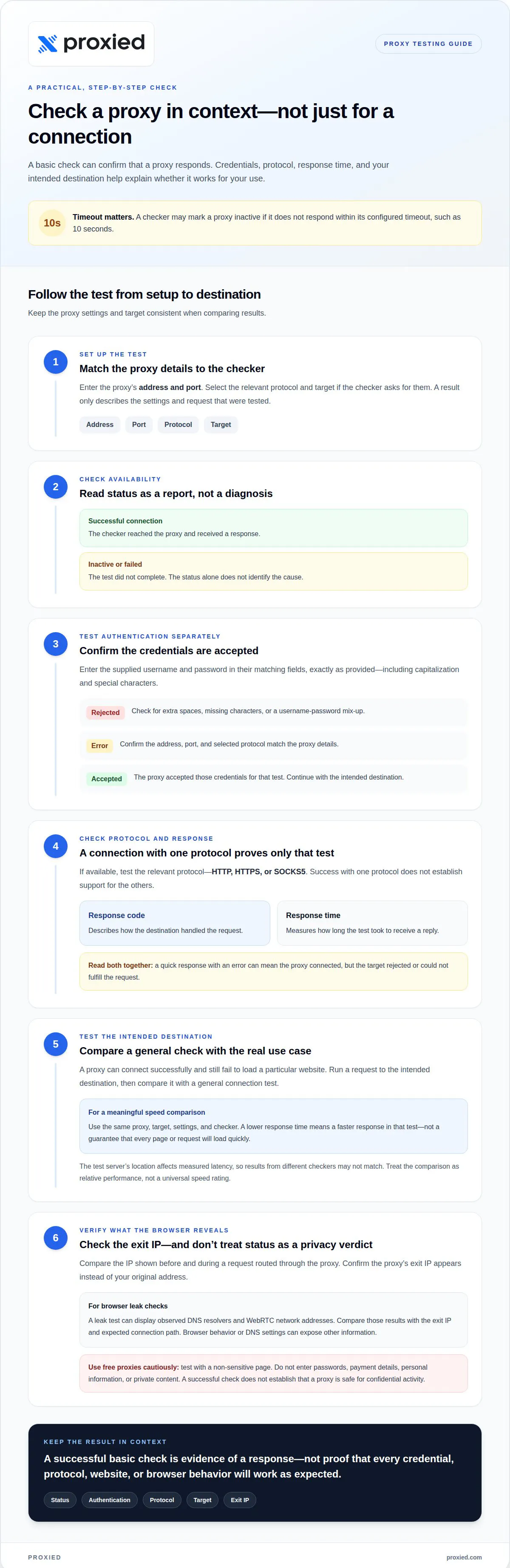
A proxy can pass a basic connection check and still fail when authentication or the target website is involved. Learning how to check if a proxy is working means testing its IP address and port, confirming whether it connects, and reviewing its response time. A checker may mark it inactive if it doesn’t respond within its configured timeout, such as 10 seconds.
A failed result doesn’t always mean the proxy server is down. The username or password may be incorrect, the proxy settings may use the wrong protocol, or a network issue may be blocking the connection. Knowing how to check if a proxy is working also means interpreting the result in context: the test server’s location affects measured latency between the tester, proxy, and target.
This guide explains how to read proxy status and response time, test authentication and availability, and troubleshoot common connection failures. You’ll also learn why a successful check is only part of the picture: testing with the website or application you plan to use can reveal issues a basic connection test misses.
Key Takeaways
- Read connection status alongside response time, and account for how test-server location can affect latency results.
- Use authentication results to distinguish invalid credentials from broader connection problems.
- Trace failures through proxy settings, server availability, network blocking, IP address, port, and protocol compatibility.
- Test the proxy against the intended website or browser setup to catch issues a basic connection check may miss.
- Learn when a proxy hosting platform may help manage and scale proxy infrastructure.
Interpreting connection status and response time
A proxy check combines connection status with response time, but neither result tells the whole story. A checker may mark a proxy inactive if it misses its configured timeout, such as 10 seconds.
Connection Status Checks
Treat the status as a report of what the checker tested. A successful connection means the checker reached the proxy and received a response; an inactive or failed result means the test didn’t complete. It doesn’t identify the cause by itself. Compare the result with the test settings, including the selected protocol and target.
For example, a proxy may connect successfully but fail to load a particular website. That points to a target-specific issue, not proof that every proxy function works. Run the check again with the intended destination, then compare the result with a general connection test.
To compare speed, record the response time for the same proxy and target under consistent conditions. A lower response time means a faster response in that test, but doesn’t guarantee every page or request will load quickly. The test server’s location affects measured latency, so results from different checkers may not match.
Response Code Interpretation
A response code describes how the destination handled a request, while response time measures how long the test took to receive a reply. Read them together: a quick response with an error can mean the proxy connected, but the target rejected or couldn’t fulfill the request. A successful response is useful evidence, not proof that every site will work.
Check whether the result came from the proxy connection itself or from a page request through it. That distinction helps separate a reachable proxy from a working route to a specific website. If the checker times out at 10 seconds, it may label the proxy inactive even when a slower response would eventually arrive.
For a meaningful speed comparison, test the same target with the same proxy settings, then compare response times from the same checker. A test from a different location may make the proxy appear slower because the network distance changed. Use the comparison to assess relative performance, not as a universal speed rating.
To check whether a proxy hides your real IP address, compare the IP shown before and during a request routed through it. Confirm that the proxy’s exit IP appears instead of your original address, and remember that browser behavior or DNS settings can expose other information. An anonymity label such as “highly anonymous” doesn’t guarantee privacy.
To test a free proxy safely, don’t enter passwords, payment details, personal information, or private content. Use a non-sensitive test page and check only the connection status, response time, and displayed exit IP. A successful check doesn’t establish that the proxy is safe for confidential activity.
Checking proxy authentication
Authentication determines whether a proxy server accepts your connection credentials. A proxy can be reachable yet reject a request because the username or password is wrong, missing, or formatted incorrectly. Test authentication separately from basic availability to identify which part of the connection is failing.
Enter the proxy’s address, port, username, and password in the matching fields. Use the credentials exactly as provided, including capitalization and special characters. If the checker reports an authorization failure, carefully re-enter the details before changing unrelated network settings. A successful authentication result means the proxy accepted those credentials for that test.
Some checkers can verify usernames and passwords, including authorization for anonymous proxies. Here, “anonymous” describes the proxy’s authorization mode, not whether your browsing is private. Check what the result actually reports: successful login, failed credentials, or a connection error. Each outcome points to a different troubleshooting step.
- Credentials rejected: Check for an extra space, a missing character, or a username-password mix-up.
- Connection error: Confirm that the address, port, and selected protocol match the proxy details.
- Authentication accepted: Continue by testing a request to the intended destination.
To check whether a proxy supports HTTP, HTTPS, or SOCKS5, select the relevant protocol in a checker that offers protocol selection, then test a request. Some checkers identify proxy protocols automatically, but a successful connection with one protocol doesn’t establish support for the others.
Use a controlled comparison if authentication keeps failing. First, test the proxy address and port without credentials, if that mode is supported. Then enter the supplied username and password and repeat the same request. If the first attempt connects but the second fails, focus on the credentials or authorization method, not the target website.
For browser use, enter credentials only in the proxy settings or authentication prompt associated with the connection. Don’t put a username and password in a shared document or send them in an unprotected message. If the browser repeatedly prompts for credentials, confirm its proxy type and server details match the successful checker test.
To check for DNS or WebRTC leaks, route the browser through the proxy and use a leak test that displays the observed DNS resolvers and WebRTC network addresses. Compare those results with the proxy’s exit IP and expected connection path. A proxy status or anonymity result alone doesn’t show what the browser’s DNS requests or WebRTC behavior reveal.
Authentication is one part of the test, not a complete privacy assessment. Record the protocol, credentials, and destination used for each result. That makes it easier to repeat the test after changing a setting and see whether the change resolved the specific failure.
Common reasons a proxy fails
A failed proxy check may indicate a settings error, server outage, network block, incorrect address or port, or protocol incompatibility. Identify the layer that failed before changing several settings at once. A connection error, for example, differs from a successful connection followed by a rejected website request.
- Incorrect proxy settings: Confirm the application uses the intended proxy address, port, and protocol. A mismatch between the configured details and the proxy settings can prevent the connection.
- Server outage: If the address and settings are correct but the server doesn’t respond, the proxy may be unavailable. Repeat the check later to see whether the result changes.
- Network blocking: A firewall or network policy may block access to the proxy. Test from another permitted network to see whether the connection behavior changes.
- Incorrect IP address or port: Compare each entry with the proxy details. A single mistyped character or port can send the request to the wrong destination.
- Protocol incompatibility: The application and proxy must use a compatible protocol. A server configured for one protocol may not accept a connection sent using another.
Change one setting at a time. Start by re-entering the proxy address and port, then confirm the selected protocol. Test again after each change. If correcting one value restores the connection, you’ve isolated the likely cause instead of masking it with unrelated adjustments.
Separate proxy reachability from destination access. If the checker connects but a specific website fails, test a different target with the same proxy settings. One site’s response doesn’t prove the proxy server is down. Likewise, a successful connection to one site doesn’t mean every destination will respond.
Network restrictions can also depend on where a request starts. If a proxy works on one network but fails on another, compare the network paths and access rules. Don’t replace the proxy immediately: the different results suggest the connection environment may be part of the problem.
Check how the proxy handles IP changes before treating a different exit address as a failure. A backconnect proxy can route requests through a pool of residential, datacenter, or mobile proxies, so separate requests may use different exit IPs. That variation alone doesn’t mean the connection stopped working.
Finally, distinguish connection trouble from an anonymity issue. If requests reach their destination but your real IP appears in other browser traffic, the proxy may still be active while the browser uses another route. Record the failing request, network, and settings to make the next troubleshooting step more precise.
Checking proxy availability and status
Check availability by testing the proxy endpoint, then confirm its behavior in a browser or with the target website. Read each result in context: a reachable server may still be blocked by a particular destination.
Proxy Availability Checks
Enter the proxy IP address and port in a checker, then start the test. Review the reported status and, where available, the country and city. These details can reveal a mistyped endpoint or unexpected exit location. Some checkers also accept a target website URL to test whether the proxy can reach that destination.
For a list of proxies, use a checker that supports batch testing or an uploaded proxy list file. Check IPv4 and IPv6 endpoints in the matching format. Treat each result as a snapshot: a timeout can reflect the checker’s configured wait limit, while a successful connection only confirms that specific test.
Browser-Based Proxy Testing
Configure the browser with the proxy’s address, port, and protocol. Open a non-sensitive test page and inspect the displayed IP address. If it shows the proxy’s exit IP, the browser request used that route. If the page fails, compare the browser result with a checker test using the same target.
Test the site you actually need, not just a generic status page. For example, a proxy may connect successfully while one website rejects its requests. A SOCKS5 server accepting UDP ASSOCIATE also doesn’t prove that UDP traffic completes a round trip, so test the traffic type your application uses.
IP Address and Port Testing
From a command line, use nc -vz PROXY_IP PORT where Netcat is available to test whether a TCP connection reaches the endpoint. To test a web request through an HTTP proxy, use curl -x http://PROXY_IP:PORT https://example.com. Replace the placeholders with your proxy details and intended destination.
A successful port test confirms reachability, not that authentication or website access works. Follow it with a request through the proxy, then interpret the status and destination response. Keep credentials out of shared command history and logs; use a protected method if authentication is required.
To check whether a proxy is blocked or blacklisted, test the intended destination and review its response. Rejection by one site doesn’t prove a universal block. Proxy detection isn’t perfectly accurate, and corporate networks, mobile carriers, or satellite internet can produce false positives.
Interpret public availability carefully. An open proxy can accept traffic from any source to any destination, creating misuse risks. A checker’s location or detection label can help explain a result, but compare it with the target response and the network you’re testing from before drawing conclusions.
How to check if a proxy is working in a browser?
Test the browser you’ll use for the actual task, not just a separate checker. A browser may use different proxy settings from another application, so a successful result elsewhere doesn’t confirm that its traffic follows the same route.
Start with the browser’s network or proxy settings. Enter the proxy server address, port, and supported protocol, then save the change. If credentials are required, enter them in the browser’s proxy prompt or configured authentication fields. Note the original settings so you can restore them if the test fails.
Open a fresh tab and load a simple, non-sensitive page. Check whether it loads, then compare the public IP it shows with the proxy’s expected exit address. If the proxy uses a backconnect pool, the exit IP may vary between requests. Focus on whether the browser uses the proxy route, rather than expecting every request to show the same address.
Next, test the destination that matters to you. For example, if the proxy is intended for a particular website, load that site and see whether its pages and expected content appear. A browser can connect through a proxy while one destination returns an error or blocks the request. Record the page response separately from the browser’s connection status.
If the page shows your usual public IP, check the browser configuration again. Confirm the proxy is enabled, the server and port match, and the selected protocol is correct. Review browser extensions that can alter routing, too. Disable relevant extensions for a controlled retest, then restore them individually to identify whether one changes the result.
For a clearer comparison, repeat the same test in a separate browser profile with matching proxy settings. Keep the destination and test method consistent. If one profile works and another doesn’t, compare their proxy configuration and extensions before changing the server details. This isolates browser-specific differences without changing several variables at once.
Interpret the outcome by layer. A page that loads with the proxy exit IP indicates the browser request used that route. A browser error may point to authentication, protocol settings, a target response, or a connection timeout. Check the browser’s exact message and compare it with a separate proxy test to narrow down the cause.
For ongoing browser-based workflows, repeat the same destination test after changing settings or extensions. Keep the recorded result alongside the proxy configuration, so later changes are easy to trace. Explore proxy options for browser workflows.
Proxied: Proxy Hosting Platform
Proxied’s Proxy Hosting Platform can help when you need to manage and scale your own proxy infrastructure. The checks in this guide help identify whether a failure comes from credentials, settings, network access, or the proxy endpoint. If your work involves maintaining proxy infrastructure, the platform provides a way to manage that setup.
For traffic that calls for mobile connectivity, Proxied also offers Dedicated 4G Mobile Proxies and Dedicated 5G Mobile Proxies. Choose the option that fits your use case, rather than treating a hosting platform and a proxy connection as interchangeable. The right next step depends on whether you need to host infrastructure or use a proxy service.
Contact Proxied to discuss your proxy infrastructure needs.
Make your next proxy decision with confidence
Use your test results to decide what needs attention next: browser configuration, network setup, or the proxy infrastructure behind your workflow. Knowing how to check if a proxy is working gives you a clearer basis for choosing the next step, rather than changing settings without a reason.
If your requirements involve mobile connectivity, Proxied offers Dedicated 4G Mobile Proxies and Dedicated 5G Mobile Proxies. Proxied also offers Free Virtual Numbers for receiving SMS messages. Consider which offering aligns with your use case, then discuss your requirements directly with the team.
Contact Proxied about your proxy needs and take the next step with a clearer plan.
Frequently Asked Questions
Why does my proxy check fail?
A failed check often points to incorrect settings, an unavailable server, network blocking, an incorrect address or port, or protocol incompatibility. First establish whether the checker reached the proxy. If it did but the destination request failed, focus on the target or request settings. For example, a proxy that works on one network but not another may be blocked along one network path.
How does the proxy tester verify if a proxy is working?
A proxy tester attempts a connection using the details you provide, then reports what happened during that test. Depending on the checker, it may request a target page, display the observed IP and location, and report response time. Treat the result as evidence about that specific route and request. It doesn’t show that every browser, destination, or traffic type will behave identically.
Can I test both IPv4 and IPv6 proxies?
Yes. A proxy checker can test both IPv4 and IPv6 proxy servers. Match the address you enter to the proxy’s address format, then review the result for the endpoint you intended to test. If one address family fails, test the other separately when available. This helps distinguish an address-specific connection problem from an issue affecting the proxy or destination more broadly.
Can I test multiple proxies at once (bulk testing)?
Yes. A checker that supports bulk tests can process multiple proxy entries or accept a proxy list file. Format each entry as the checker expects, so a malformed line doesn’t confuse the results. Review each proxy’s status individually rather than treating the whole batch as one outcome. Mixed results can help identify an endpoint that needs attention.
How to test proxy speed, latency, and connection stability?
Compare response times using the same checker, destination, protocol, and network connection. Repeat the test to see whether results are consistent or fluctuate. A lower response time indicates a faster response in that test, while substantial variation can point to changing network conditions or routes. Don’t compare results from different test locations as if they measured identical conditions.
How to diagnose common proxy connection errors?
Start by recording the exact error and the step where it appears. A timeout means the test didn’t receive a response within its wait period; an authentication error points to credentials or authorization. If the proxy connects but a page fails, test another destination to narrow down the issue. Change one setting at a time, then retest the same request.