

See proxies
See proxies
Select Proxy
Select Country
Select City
Purchase
Select Country
Listings will appear after a country has been selected.
Proxies Aren’t Enough: Why Proxy Users Need an Antidetect Browser?
Using just a proxy or especially a VPN is not enough for anonymous browsing. You need to change a whole set of digital fingerprint parameters that websites use to identify you, including system time, User-Agent, fonts, browser language, and various other data that can indirectly reveal your location to websites.
With a proxy, you can mask only the following parameters:
- Public IP address;
- IP-based GEO;
- ISP or ASN and, consequently, the network type (datacenter/residential/mobile);
- IP reputation, which is determined by the proxy IP rather than your real device.
At the same time, websites can still see your:
- Cookies;
- User-Agent;
- Browser parameters (version, fonts, language, etc.);
- Device parameters (OS, system fonts, CPU, memory, GPU, screen resolution, etc.).
Proxies do NOT mask your browser and hardware parameters!
How Can You Mask Browser and Hardware Parameters So Websites Can’t Recognise You?
There are several ways to mask your browser and hardware parameters.
The first option is to manually change the settings of each browser, including its language, fonts, User-Agent, and other parameters. For example, you can create several profiles in Google Chrome, assign a separate proxy to each one, and configure different parameters for every profile.
The second option is to install a dedicated browser extension that spoofs the User-Agent and some other parameters.
The problem with both approaches is that they do not hide:
- CPU and GPU parameters;
- Screen resolution;
- JavaScript graphics and audio APIs and other device parameters.
Together, these parameters form a fingerprint: a digital signature that websites can use to recognise you even after you change your IP address with a proxy or VPN.
Manual configuration and browser extensions only mask certain browser parameters. They do not even hide your device's system time. If your system timezone does not match the GEO of your proxy, a website may detect the inconsistency and determine that you are masking your real IP address.
The third option: an antidetect browser. It spoofs both browser and hardware parameters. An antidetect browser does this quickly and automatically, creating multiple browser profiles with a different fingerprint for each one.
What Is a Browser Profile?
It is a separate workspace with a unique combination of fingerprint, IP address, and cookies. Essentially, it acts as a separate digital identity. An antidetect browser can create any number of such identities, but to prevent websites from linking them by IP address, each profile needs a separate proxy.
How Does an Antidetect Browser Work? Let’s Look at Dolphin Anty
The basic workflow is simple. You create a browser profile, add a proxy and, if necessary, cookies. The antidetect browser handles the remaining fingerprint parameters automatically, including browser fonts, language, system time, operating system, and other data that the browser shares with the websites you visit.
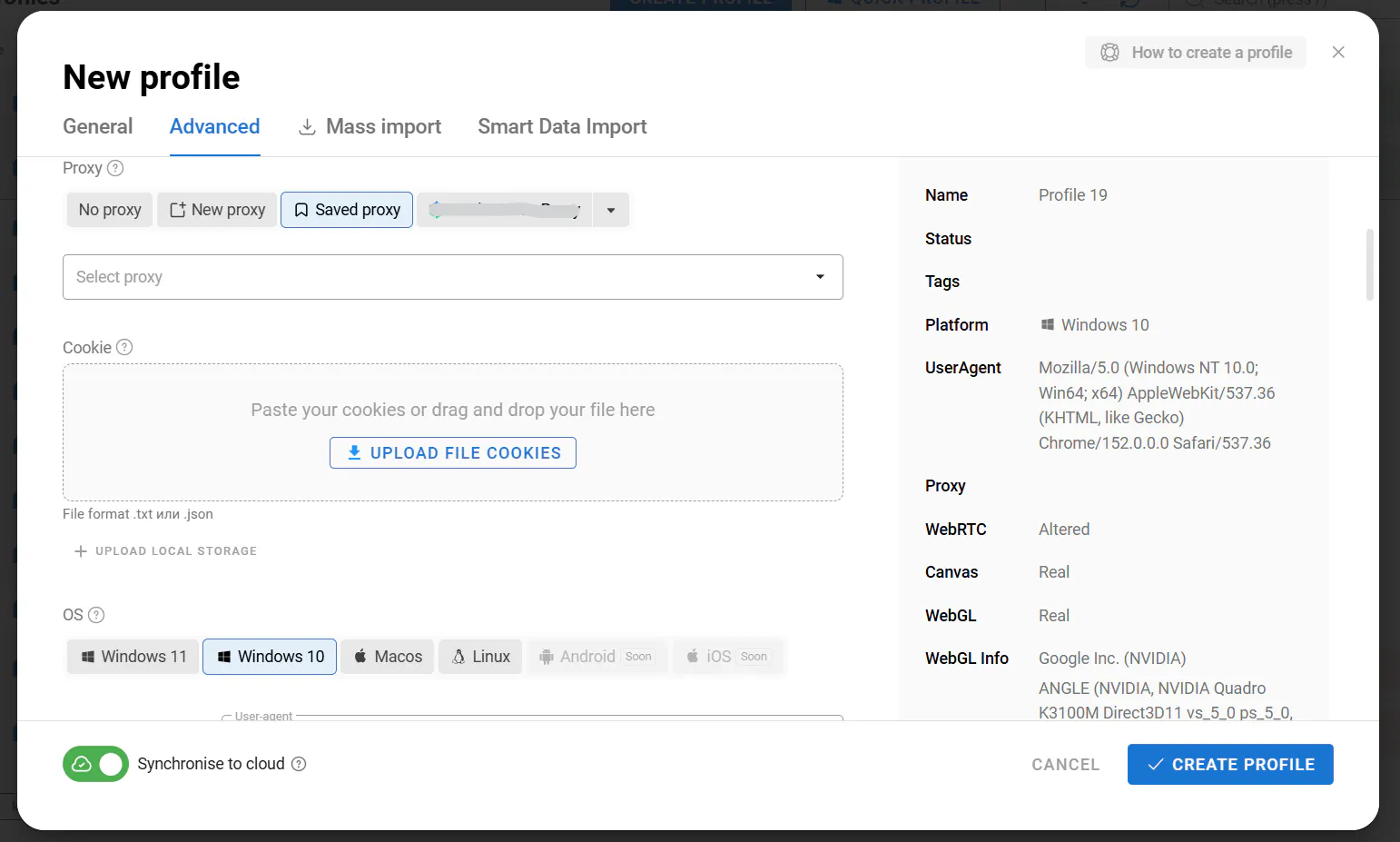
The process of creating a browser profile in Dolphin Anty. All you need to do is select a proxy and add cookies. The antidetect browser selects the fingerprint parameters automatically, but if you understand browser fingerprinting, you can configure them manually.
You can create multiple profiles, and each one gets a slightly different digital fingerprint. The fingerprints may be similar overall, but differ in specific details. These differences are enough for websites to treat each profile as a separate user with its own IP address and cookies.
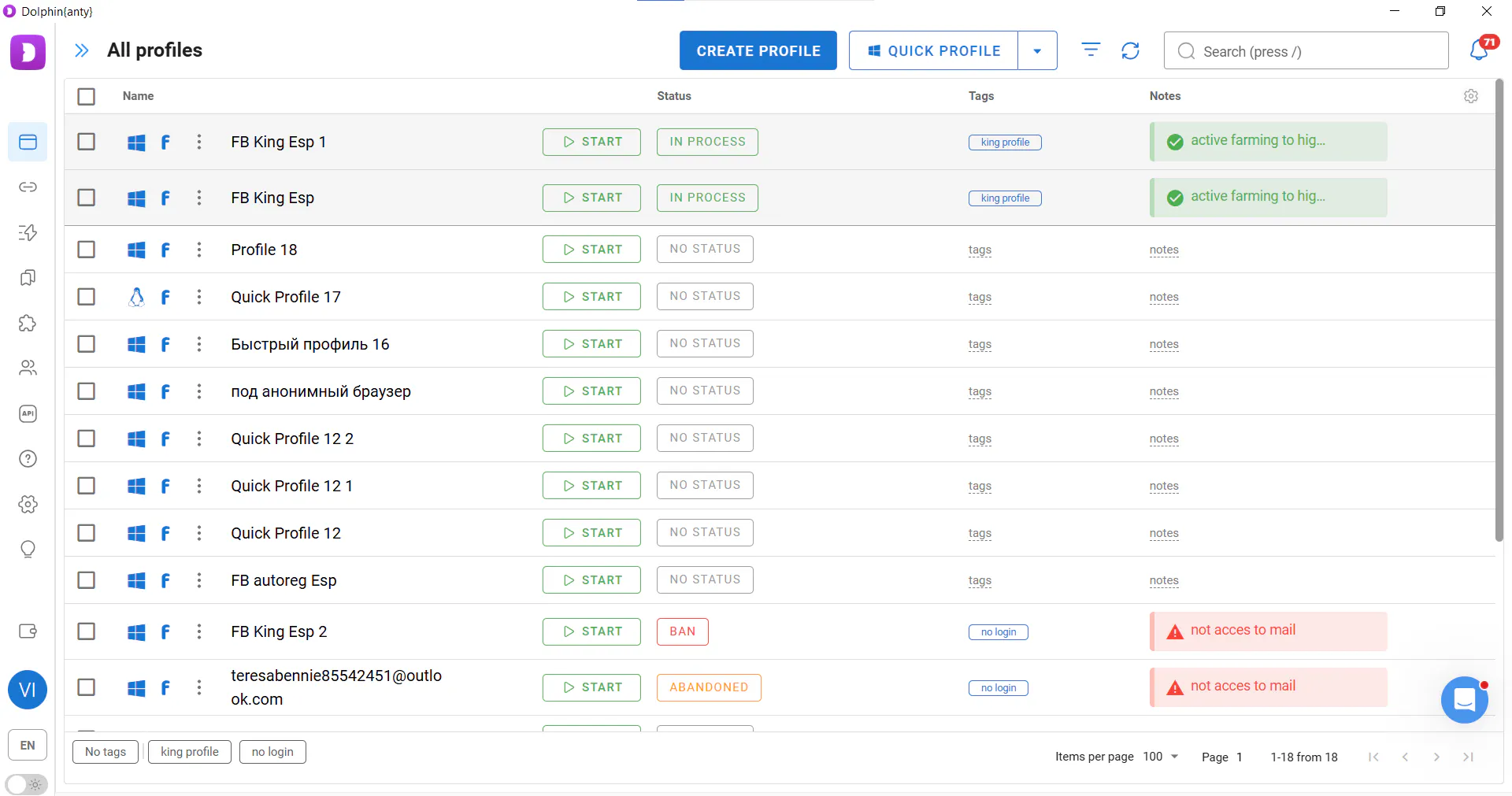
The list of browser profiles in Dolphin Anty.
One of Dolphin Anty’s key features is that it generates digital fingerprints based on real user fingerprints. You select a proxy and operating system, while Dolphin Anty chooses a fingerprint that is as close to a real one as possible from the available sets of parameters. This is done to make sure that the browser profile and its digital fingerprint look consistent to websites and do not raise questions due to mismatched or incompatible parameters.
Inconsistent vs Consistent Fingerprints
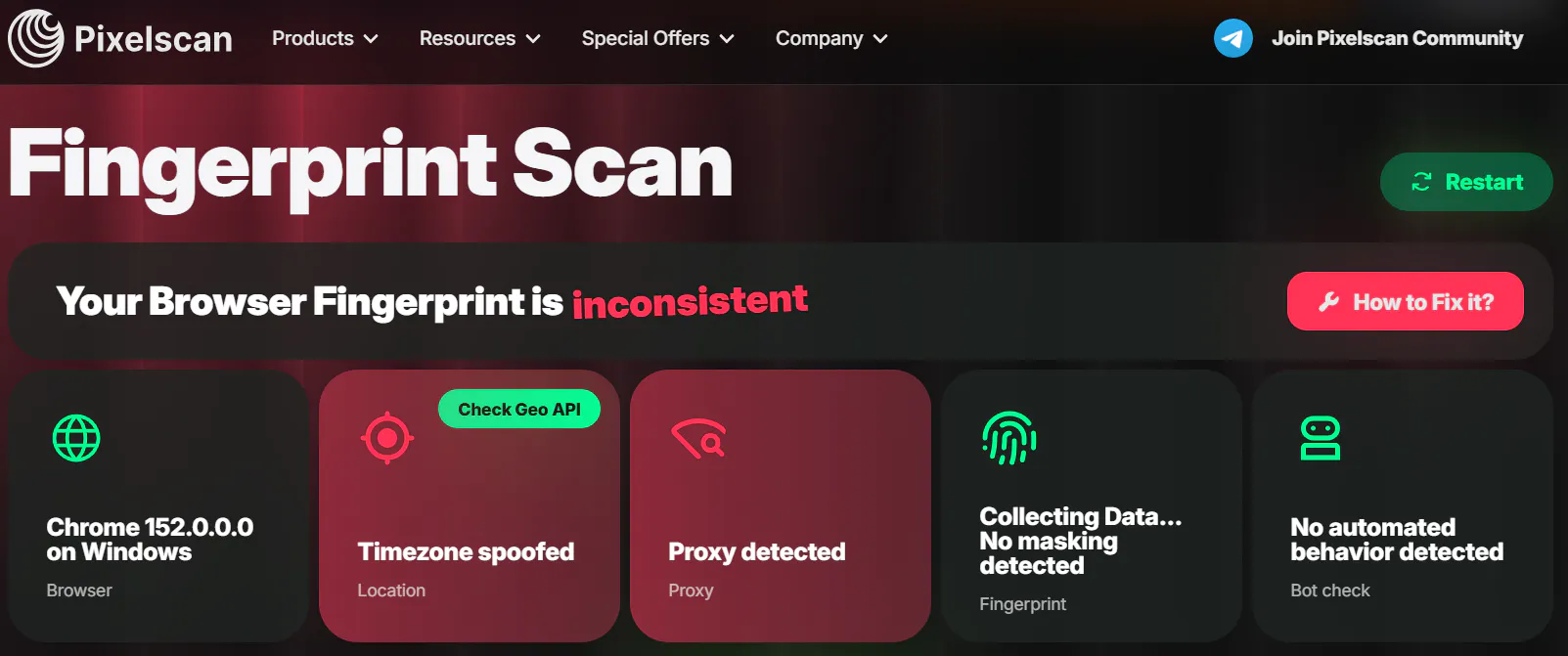
One of Dolphin Anty’s strengths is that it creates highly consistent fingerprints that look trustworthy to websites. As an example, let’s launch a Dolphin Anty profile and open the Pixelscan checker in it.
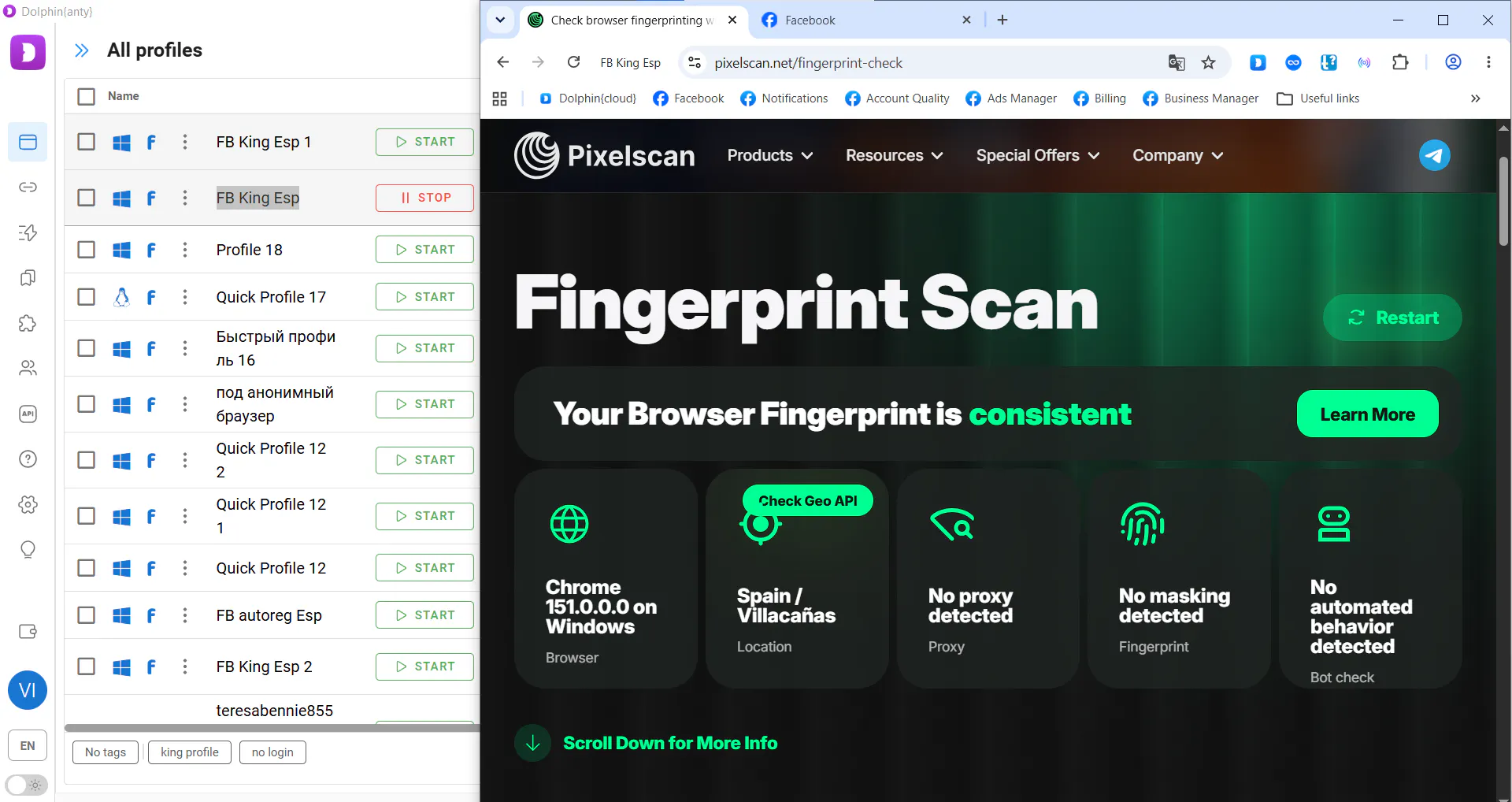
As you can see, the results are different from the example above. The checker shows that the profile is fully consistent. This means that such a profile is less likely to raise suspicion on websites.
What is an inconsistent fingerprint? It is a digital fingerprint whose parameters do not match each other. For example, the profile may indicate one operating system while the system fonts correspond to another. Or the system time may not match the location. There may also be inconsistencies between the IP and GEO, or between the browser version and other browser environment parameters. These kinds of mismatches can indicate to a website that the digital fingerprint has been spoofed.
Since Dolphin Anty uses fingerprints from real users, their parameters are highly consistent with each other. In addition, profile parameters are selected with your proxy and chosen operating system in mind.
Important: to make your browser profile look more trustworthy to websites, it is better to select the same operating system that is installed on your actual device. No antidetect browser, including Dolphin Anty, can currently emulate a different operating system with complete accuracy.
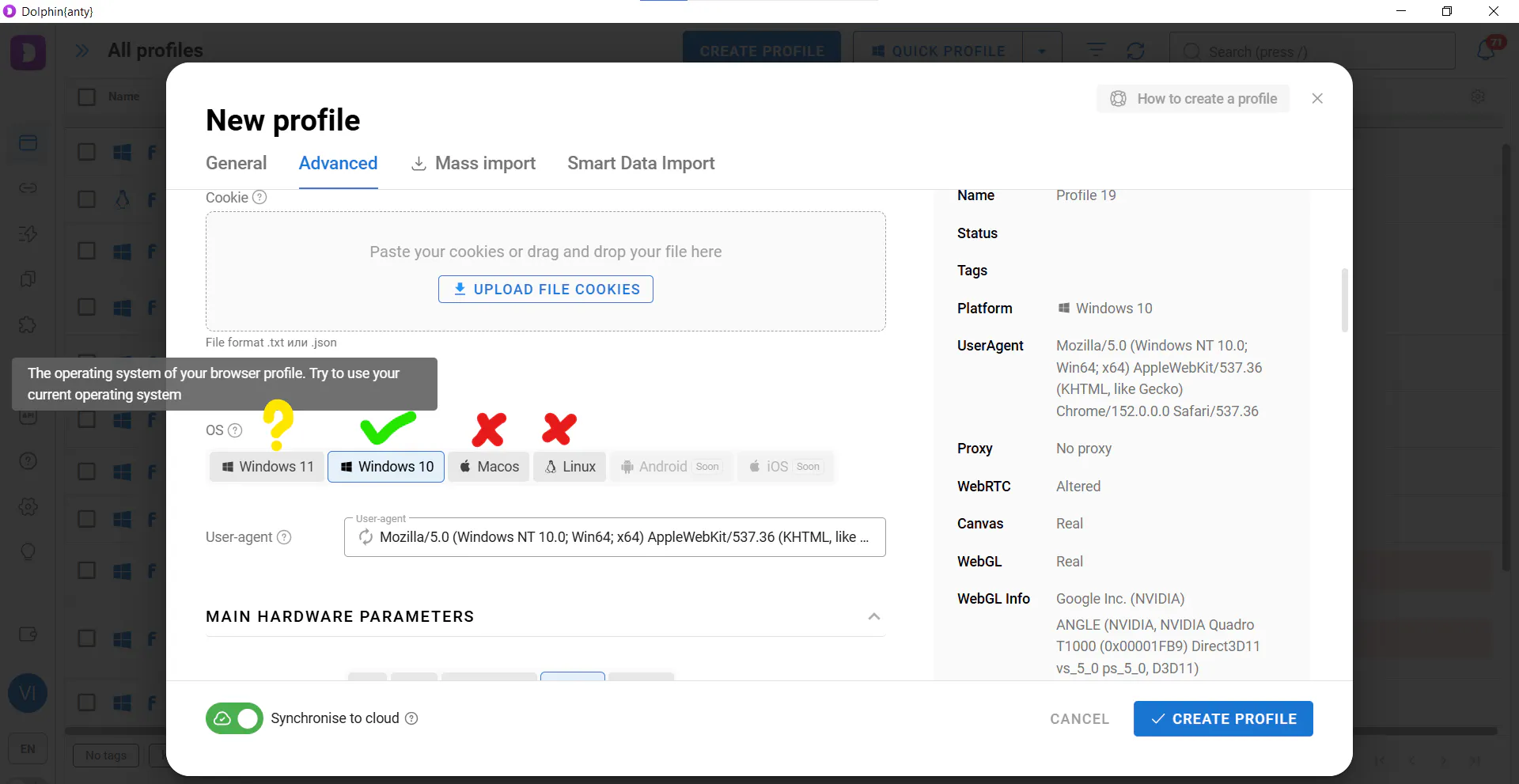
It is better not to emulate even a different version of your actual operating system.
How to Add and Use Proxies in Dolphin Anty
Before adding a proxy, log in to your Proxied account → configure the proxy (select the gateway, country, city, ISP/ASN, connection type, and rotation settings) → copy the generated proxy port.
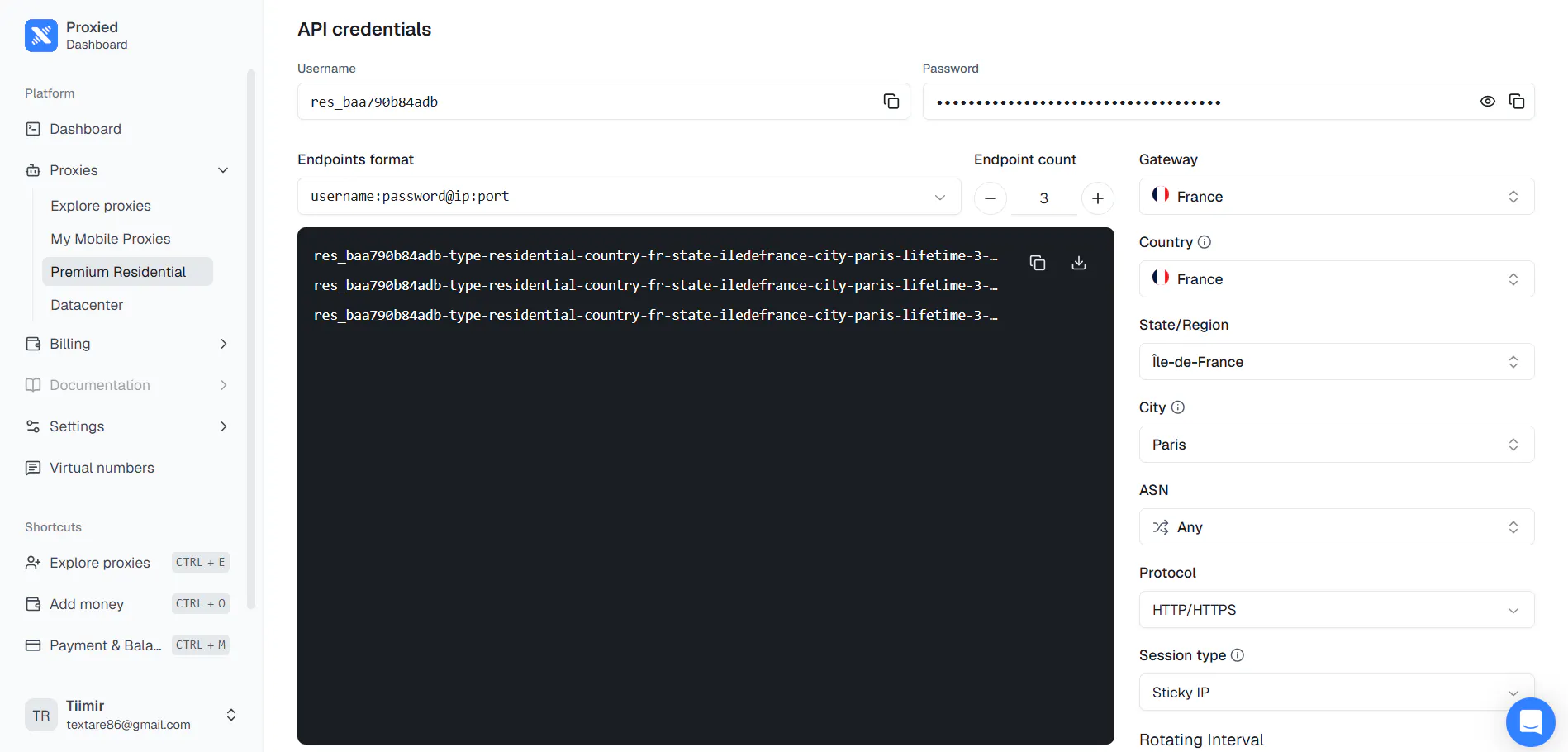
The proxies you configure can be added to Dolphin Anty in three ways.
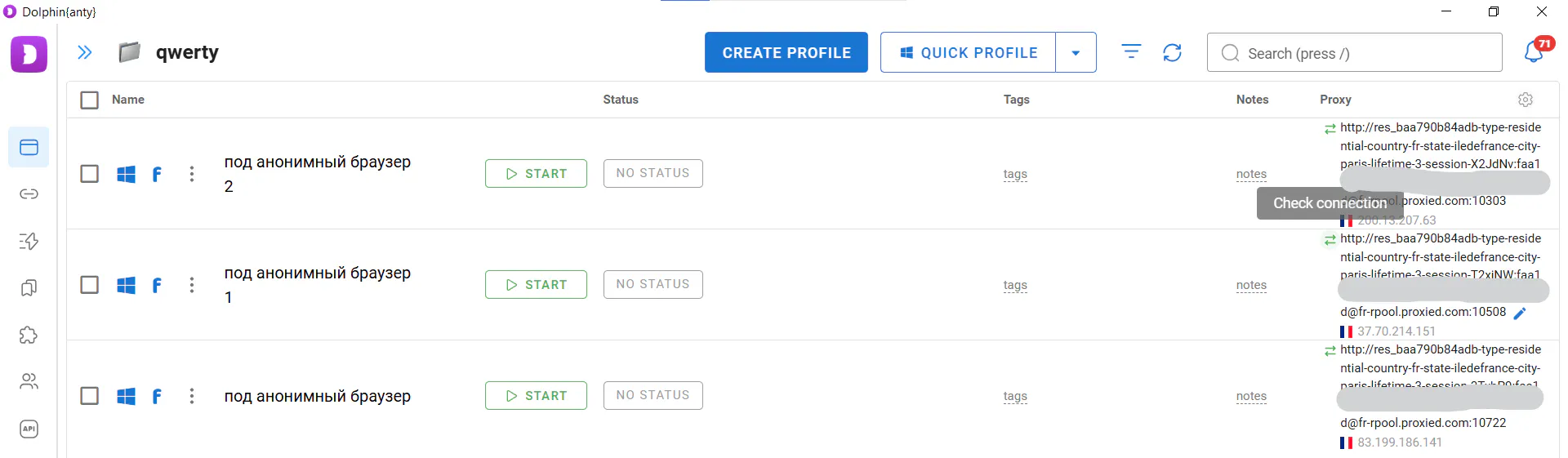
The first option is to add a single proxy directly when creating a browser profile. To do this, click "Create Profile" → select New Proxy in the Proxy section → copy the proxy port details and paste them into the corresponding field. Dolphin Anty will then check whether the proxy is working. If it is, a checkmark and GEO will appear below the field. This means you can create the profile and start working.
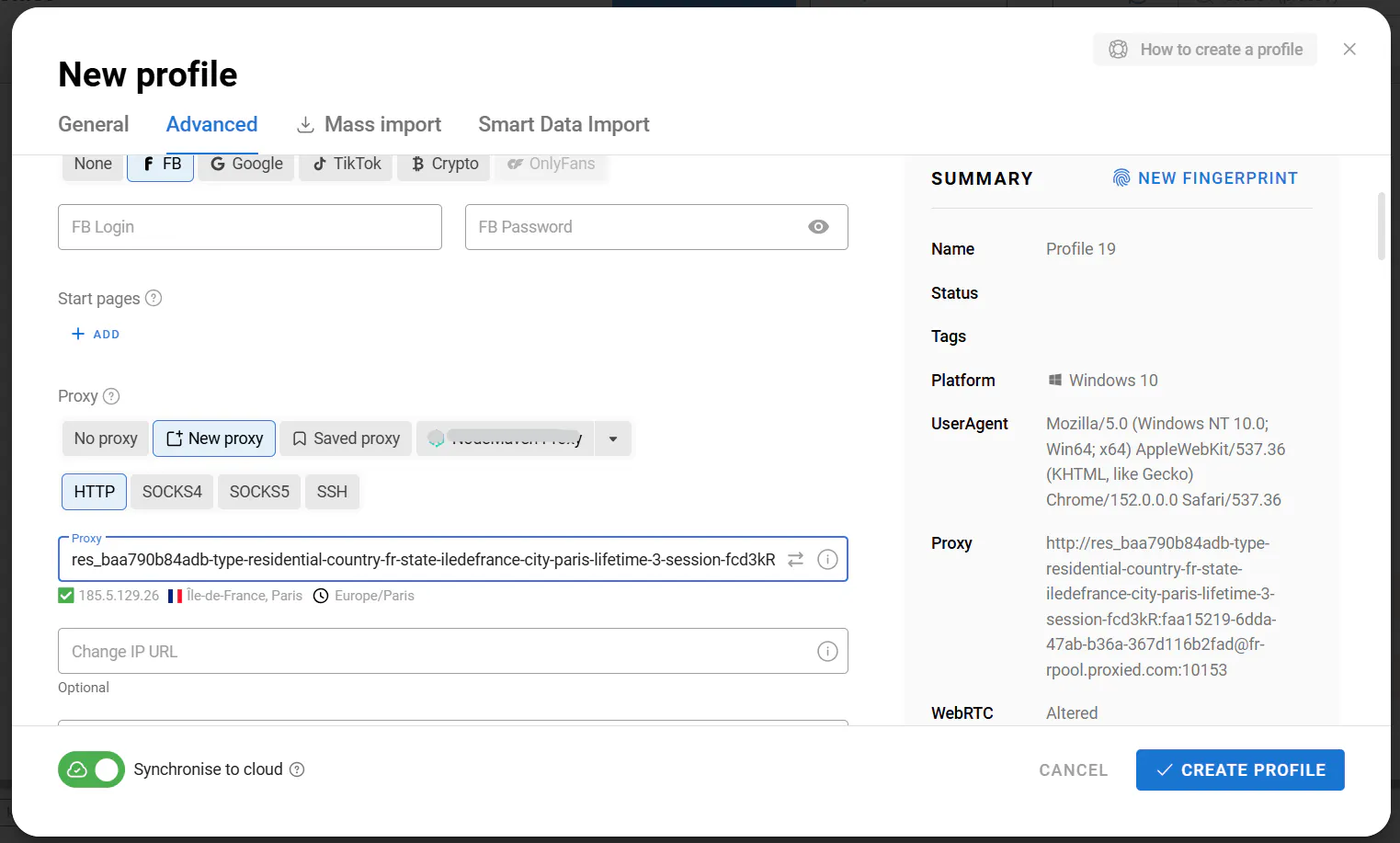
The second option is bulk addition. First, create a browser profile, then click "Copy Profile" and use this feature to create as many profiles as you need.
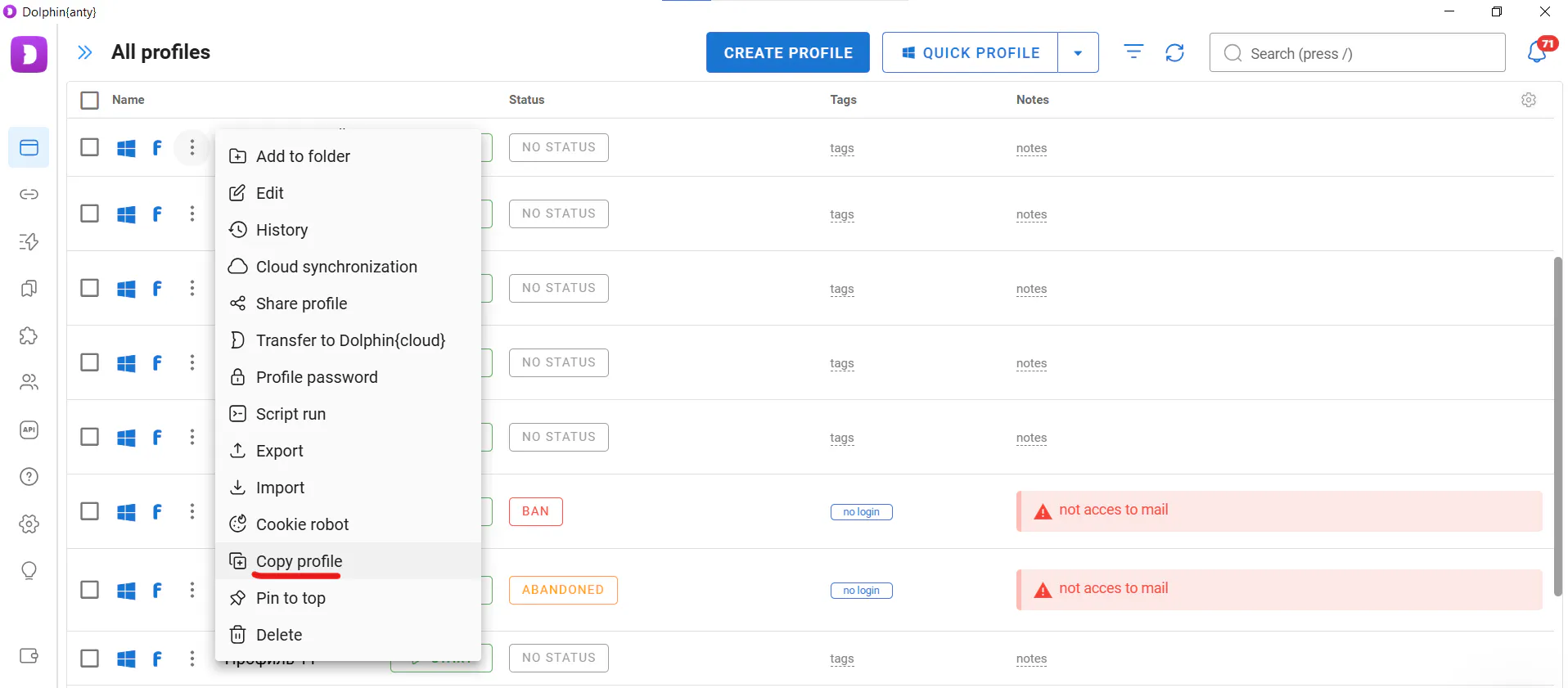
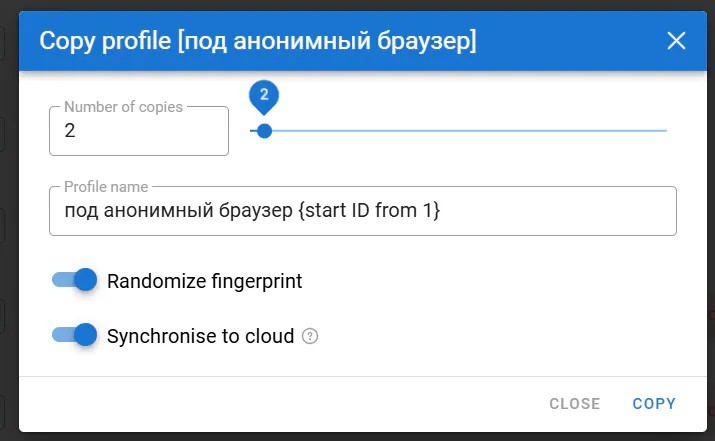
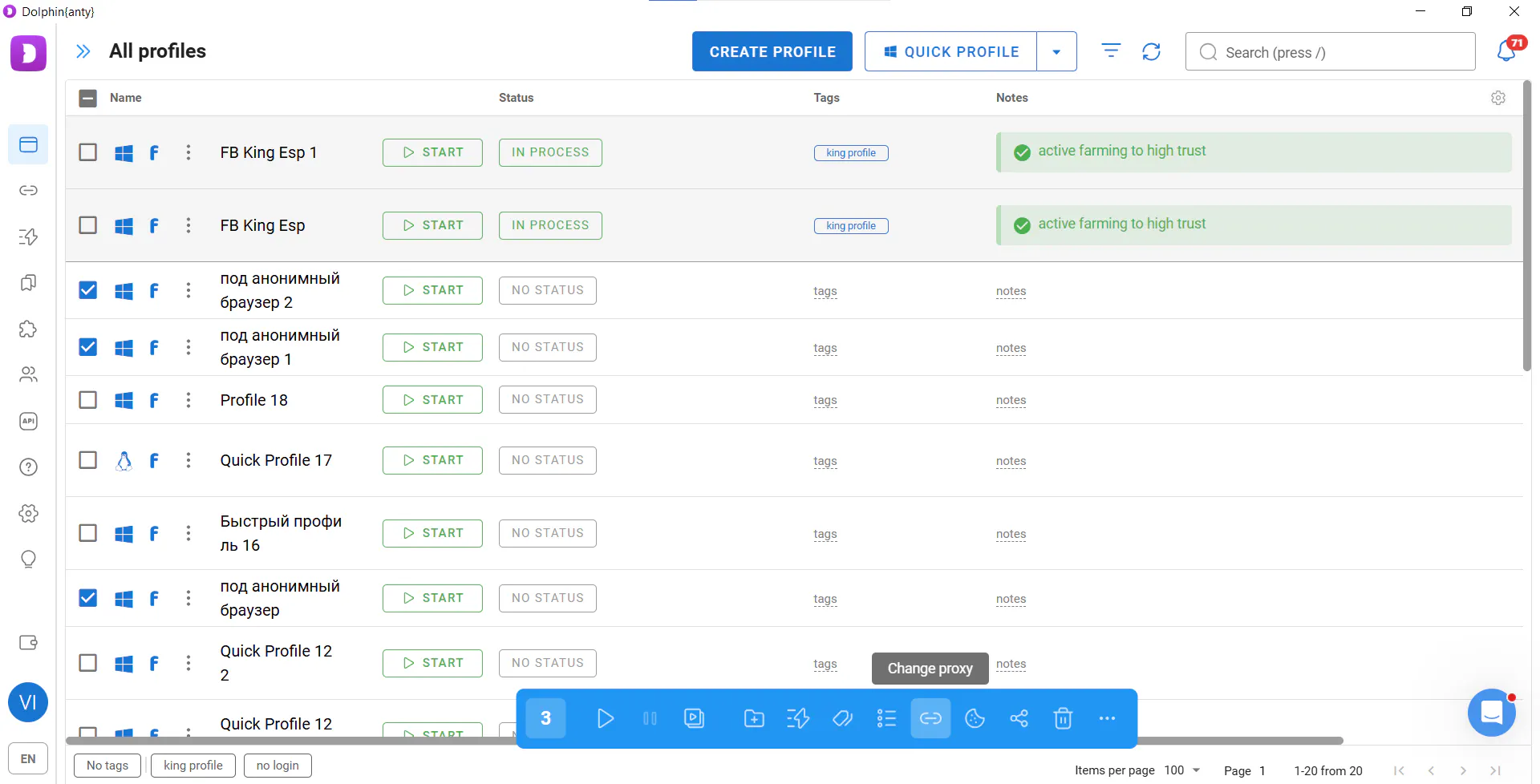
Each of them will have its own digital fingerprint. Next, select the profiles you have created, click "Change Proxy" on the panel that appears, and select "New Proxy."
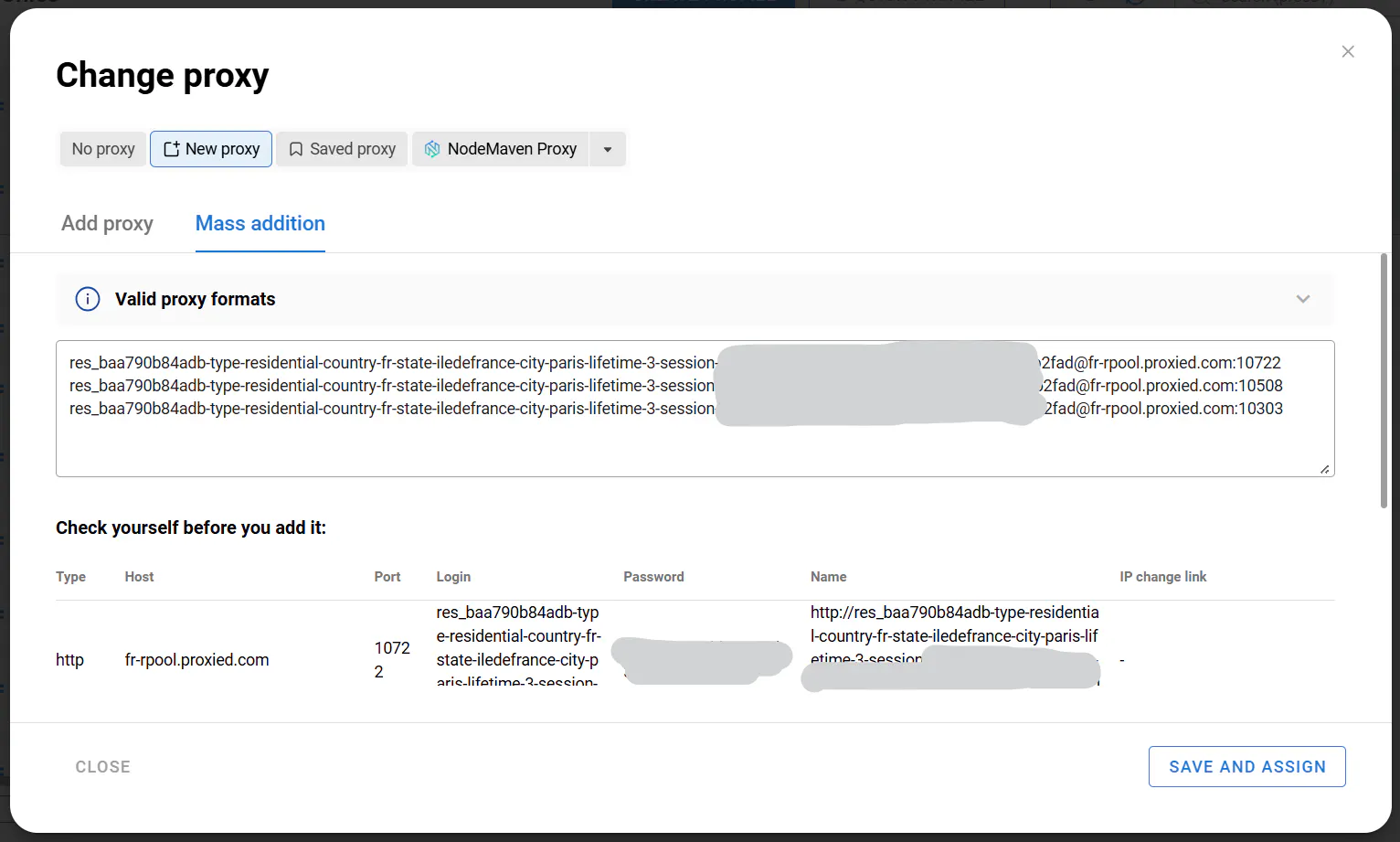
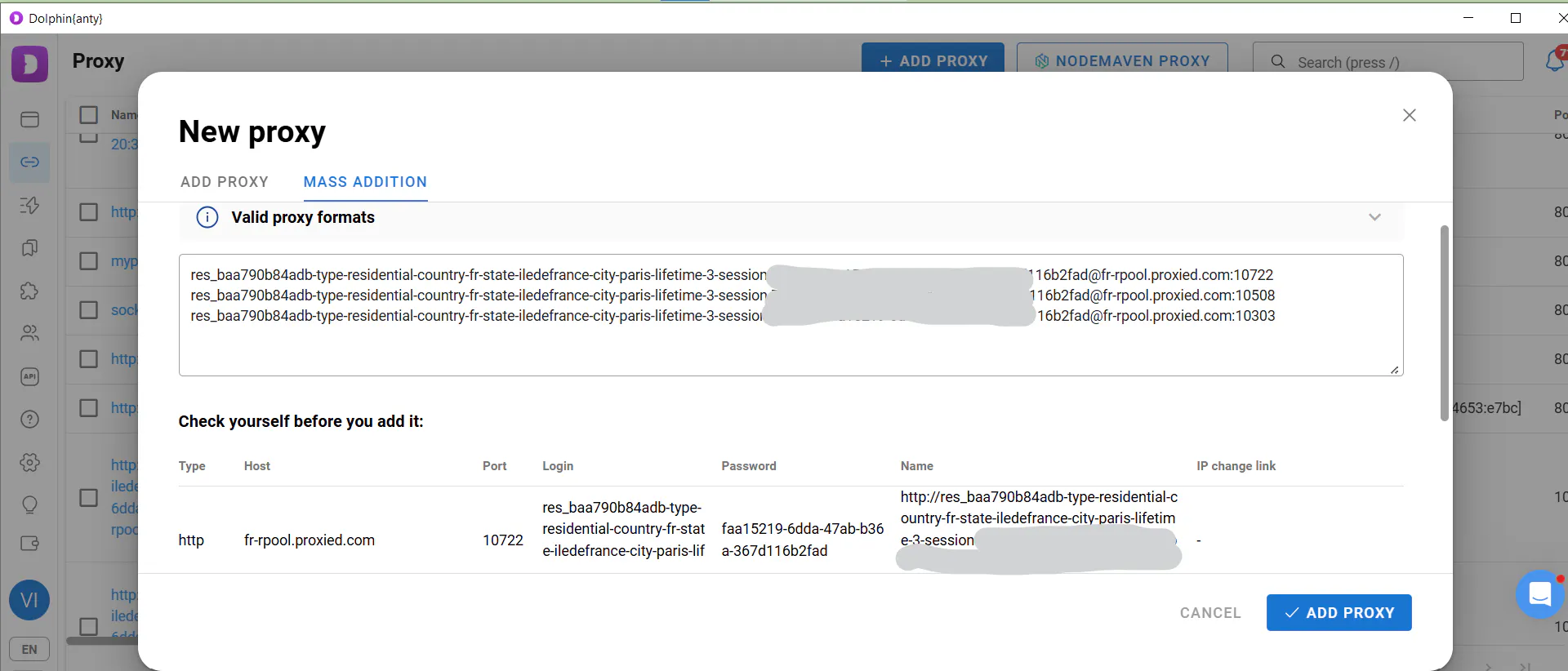
Next, go to "New Proxy" → "Mass Addition" and paste the copied proxy port details. Then click "Save and Assign."
Save the proxies and select "Sequentially" as the Distribution Type, assigning one proxy to each profile. Then check the proxies by clicking "Check Connection." If everything is working correctly, the arrows will turn green, indicating that the profiles are ready to use.
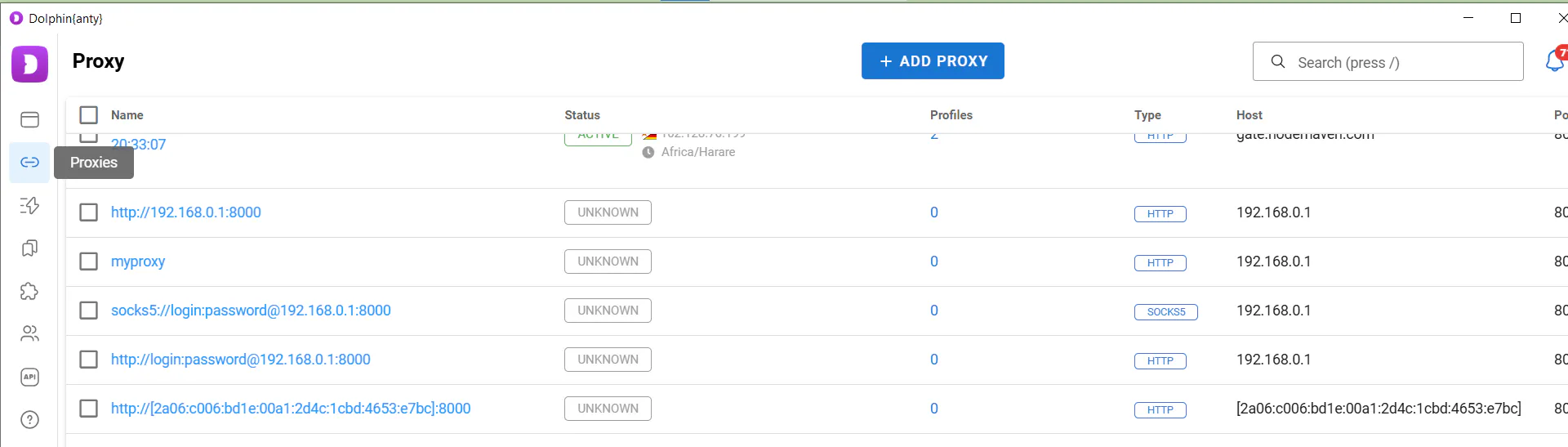
The third option is to add proxies to the "Proxies" section. To do this, click "Add," select the "Mass Addition" tab, and paste the proxy details.
After adding the proxies, select the ports using the checkboxes and click "Check Connection" to test the connection.
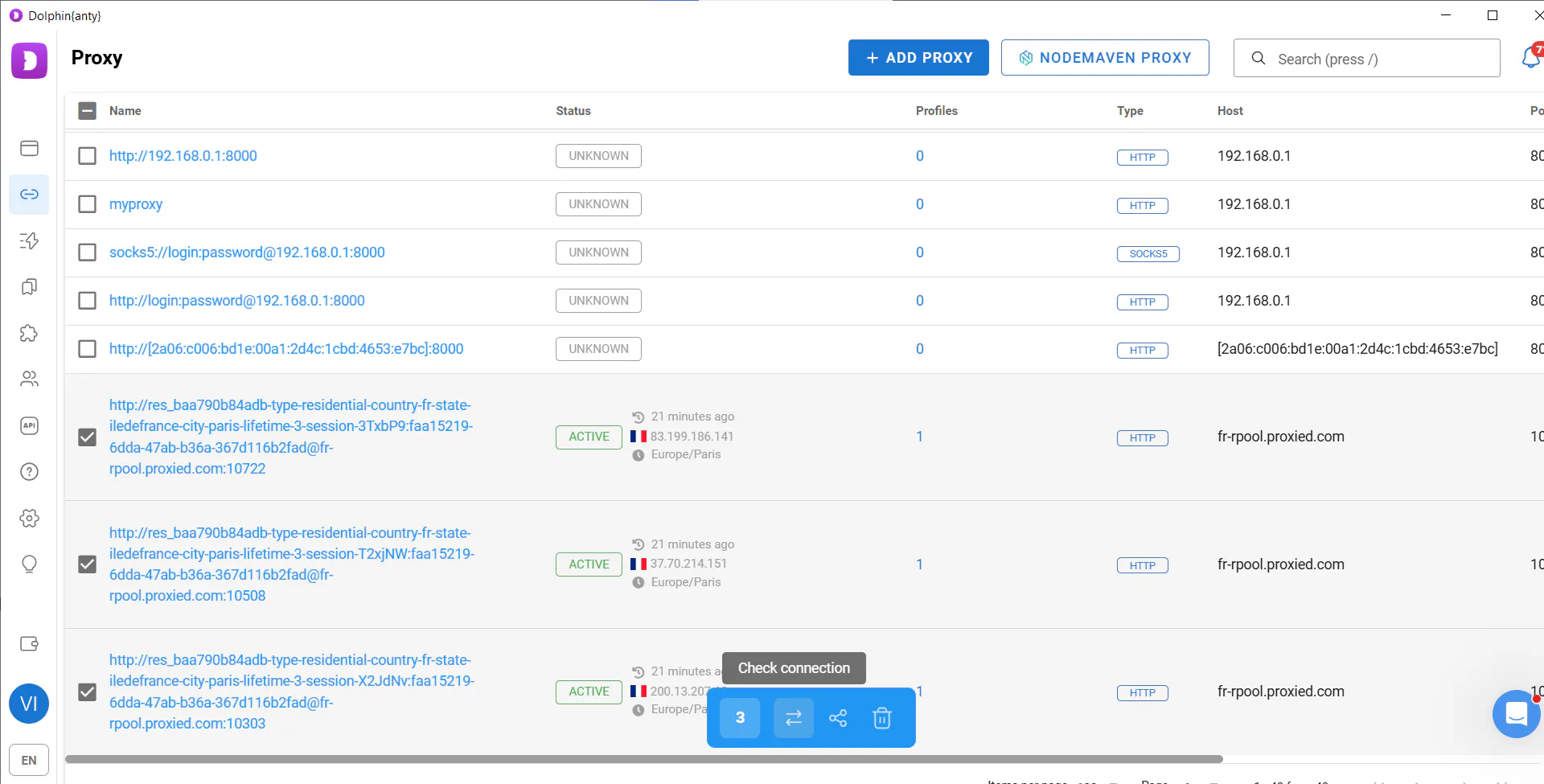
If everything is working correctly, the proxies are ready to use. You can then assign them to profiles either when creating a new profile or in bulk when working with multiple profiles.
To check how well the proxies work in your browser profiles, launch a profile and open the Pixelscan checker. It will help you determine whether any detected issue is related to the digital fingerprint or the proxy.
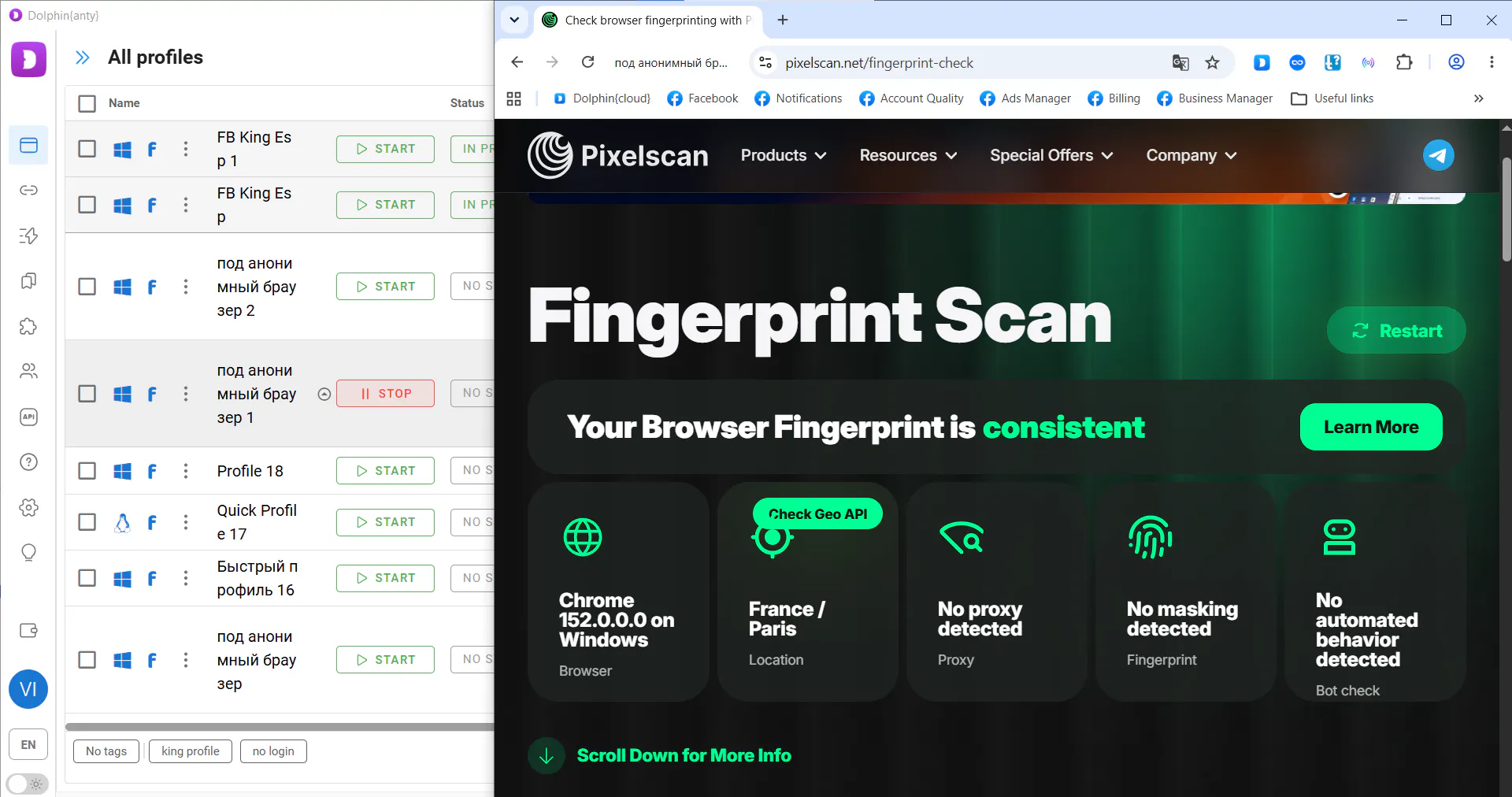
In this example, everything looks good: both the digital fingerprint and the proxy appear natural, and Pixelscan does not detect any attempts to impersonate another user.
How to Scale Your Work in Dolphin Anty
Dolphin Anty offers several tools for scaling up and speeding up your work, as well as organizing large numbers of browser profiles.
When it comes specifically to scaling, the two main options are Scenarios and the Synchronizer.
Scenarios (Scripts)
Scenarios allow you to perform a predefined sequence of simple, routine actions simultaneously across any number of browser profiles. These sequences are built from basic actions such as clicking, scrolling down a page, scrolling through a feed, opening a URL, and so on.
To create a scenario, go to the "Scenarios" section and select the "Create" tab.
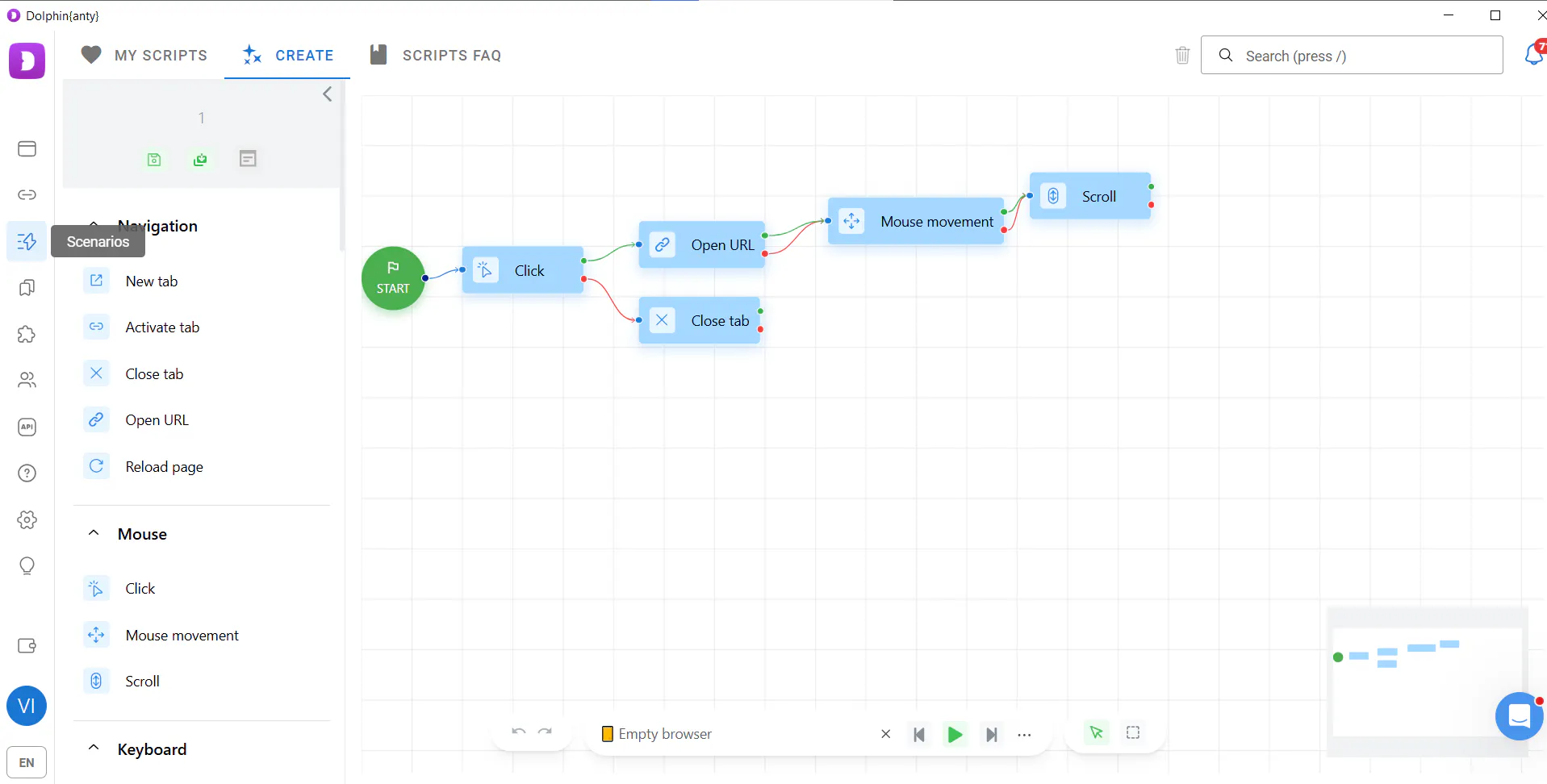
The blocks in the left column and on the workspace represent simple actions that you can use to build a script.
Next, select the actions you want the scenario to perform and save the sequence. To run it later, hover over a profile or select multiple profiles where you want the script to run.
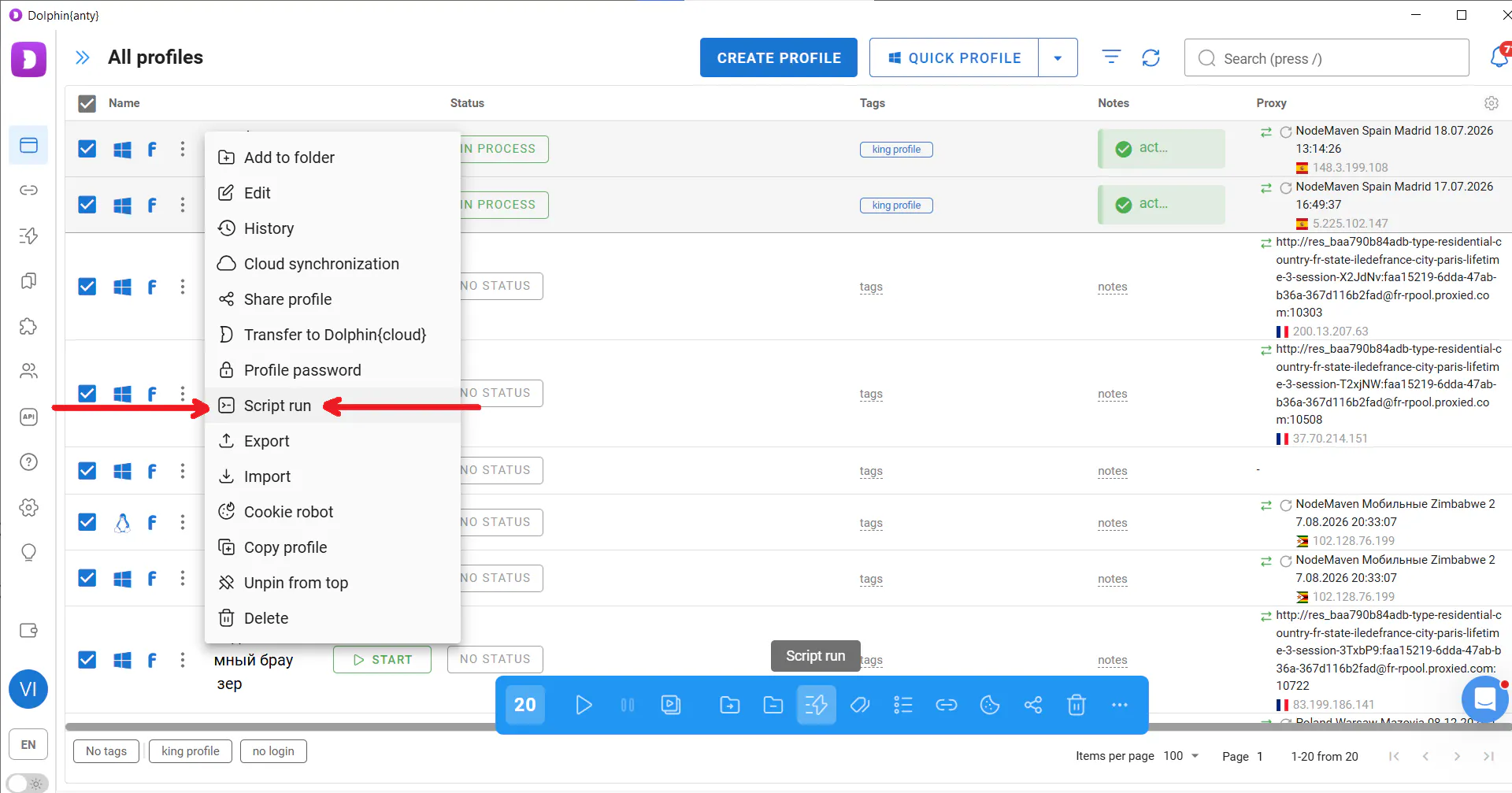
Scenarios allow you to perform routine actions across a large number of profiles at once, such as farming ad accounts or setting up automated posting. There is no need to use complex custom scripts or third-party services.
Synchronizer
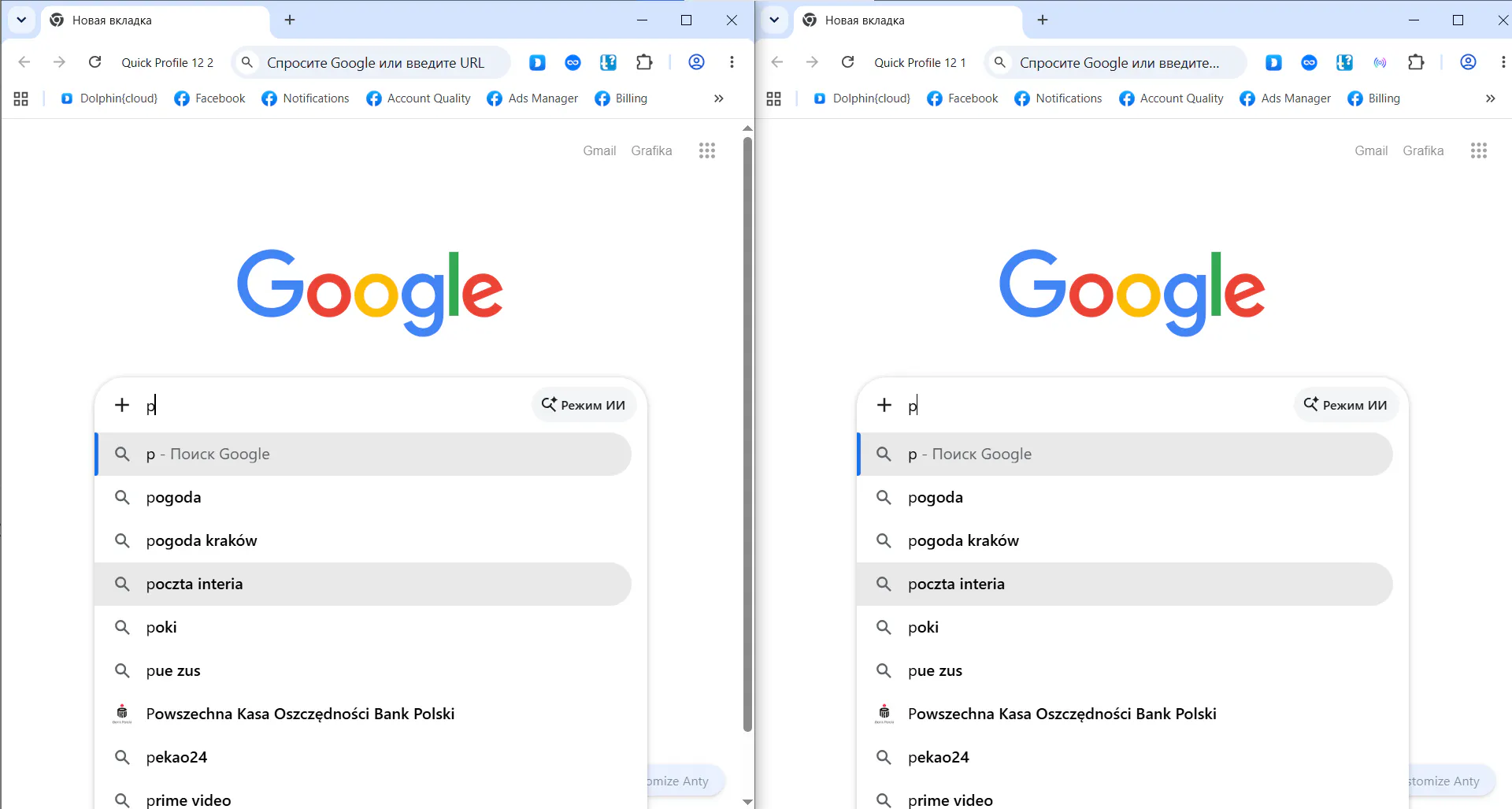
The Synchronizer lets you repeat your manual actions across multiple browser profiles at the same time. It is useful for scaling actions that cannot be delegated to an automated script, such as launching an ad campaign, replying to comments, and similar tasks.
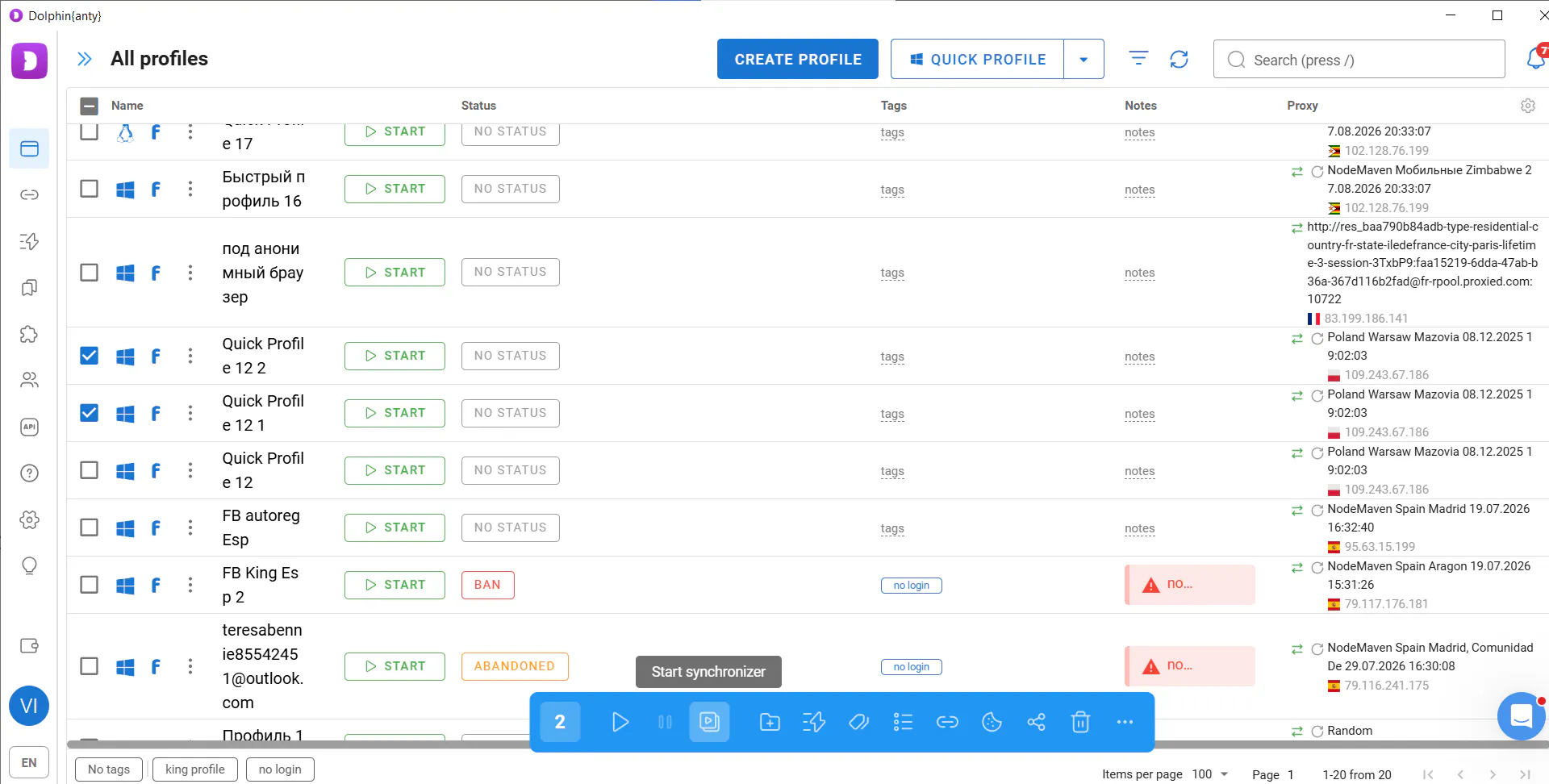
The Synchronizer works as follows: select the browser profiles you need and click "Launch Synchronizer" on the bulk actions panel at the bottom. Then select the master profile where you will perform the actions manually.
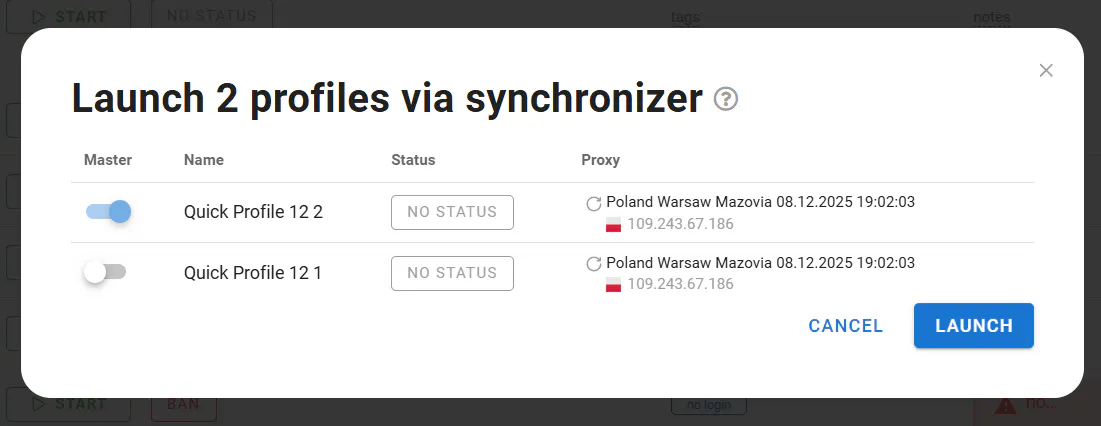
Now, everything you do in the master profile will be duplicated across all the other selected profiles.
Organizing Work with Dozens or Hundreds of Profiles
To organize and navigate a large number of browser profiles, Dolphin Anty also provides tags, statuses, and notes.
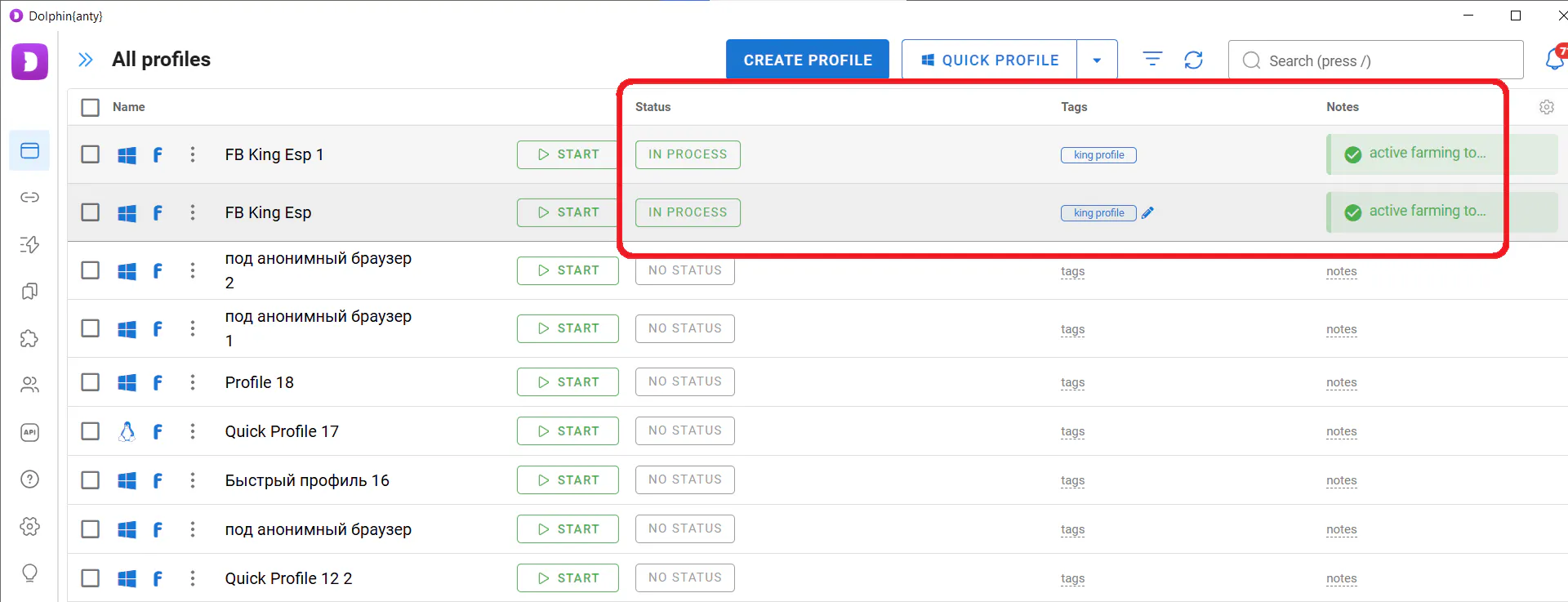
Statuses provide a quick overview of each profile's current state, while notes contain brief information about the browser profile, such as what needs to be done in it. Tags indicate the profile's category or purpose and can be used to filter the list.
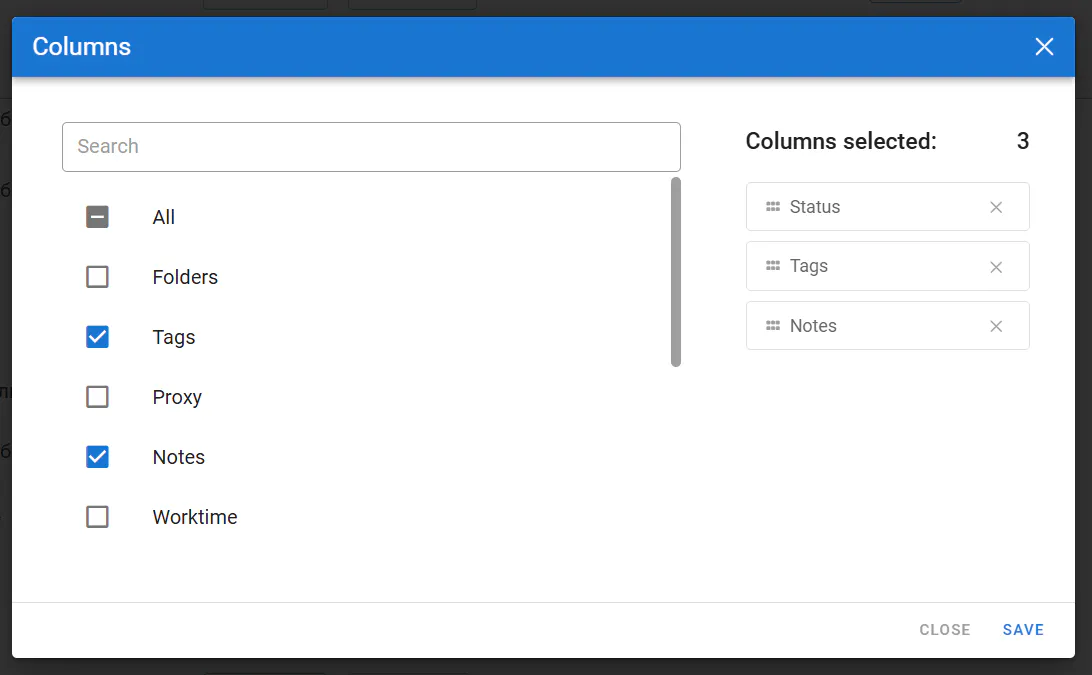
You can also resize, add, or remove columns in the profile list. To do this, hover over the gear icon in the upper-right corner of the list to open the editor.
Conclusion
If you use proxies to bypass regional restrictions or view search results from another region, you do not need an antidetect browser. But if you need to hide your digital identity from websites to reduce the risk of hardware-based blocks or manage multiple accounts despite platform restrictions, an antidetect browser becomes essential:
- A proxy changes your IP address;
- An antidetect browser spoofs browser and device parameters.
Dolphin Anty also provides tools for scaling your work across dozens of proxies and accounts. You can use it on the free plan, which supports up to 5 browser profiles.