

Getting started on Proxied Dashboard
The My Proxies dashboard allows you to manage all your proxies in one place – you can view each proxy's details, check its status, and switch between proxies seamlessly for uninterrupted connectivity.
Dashboard Overview
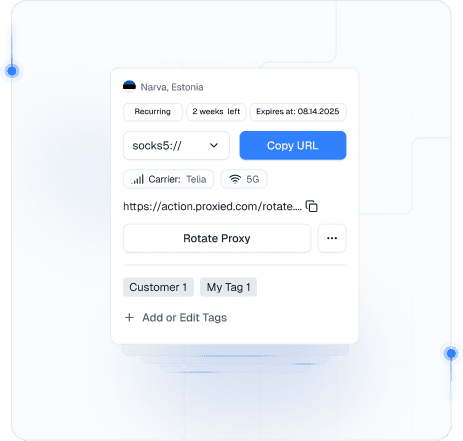
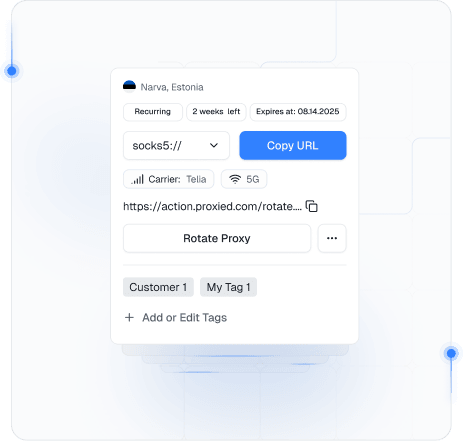
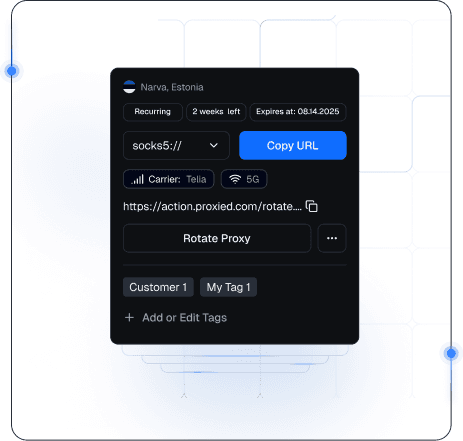
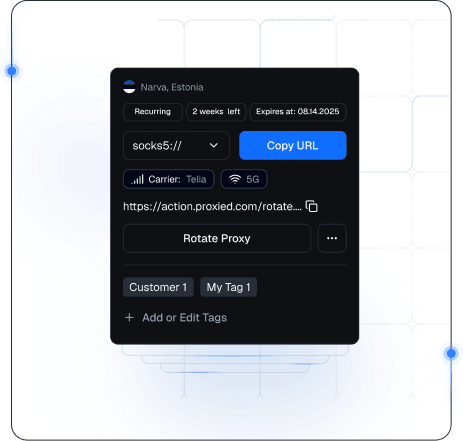
The My Proxies page shows a list of your proxies with key info and actions for each:
Each entry shows the proxy's city and country (e.g. Berlin, Germany) alongside a flag icon, so you know where the IP is based.
 Berlin, Germany
 London, UK
 Narva, Estonia
See how much time is left on your proxy subscription and its exact expiration date to track when it expires.
The dashboard displays the proxy in URI format – for example,
Additional metadata like carrier and network type confirm the proxy uses a mobile network—useful for services needing a mobile residential IP.
Each proxy has a Rotate option to change its IP on demand. A global Refresh button updates the proxy list and status.
Click any proxy in the list to view its full configuration details (server, port, username, password) in a dedicated panel.
Proxy Details and Formats (SOCKS5 vs HTTP)
Each proxy can be used in one of two formats: SOCKS5 or HTTP. These refer to the proxy protocol types and determine how you configure the proxy in your applications:
SOCKS5 Proxies
A SOCKS5 proxy handles various traffic types and appears with a socks5:// prefix. Use it if your app supports SOCKS5.
HTTP Proxies
An HTTP proxy (for HTTP/HTTPS traffic) uses the http:// prefix. Use it when your app or browser needs a standard web proxy.
Example Proxy Formats
Both entries correspond to the same proxy device/location, but allow you to connect via different protocols as needed.


Authentication
Proxies use username\:password authentication before the `@` in the URI. Click a proxy to view and copy credentials.
Note
Set up a proxy by pasting the URI or entering details and choosing SOCKS5 or HTTP.
IP Rotation
A key feature of Proxied's proxies is IP rotation, which helps maintain anonymity and avoid blocks by periodically changing the IP. There are two ways to rotate IPs:
Manual Rotation
Click Rotate Proxy to instantly get a new IP if the current one is slow, blocked, or needs refreshing.
The proxy address stays the same, but the outgoing IP changes quickly during rotation. You keep using the proxy as before with a new external IP.


Automatic Rotation
In the proxy’s config panel, enable Automatically Change IP to rotate the IP on a set schedule (e.g., every 60 minutes).
After IP rotation, your connection details stay the same—no need to update settings. Only the external IP changes. Use the dashboard’s Refresh to check the latest status and metadata.
Rotate URL
Each proxy has a unique rotate URL in its config panel to remotely trigger an IP change.
You can open this URL in a browser or send an HTTP request to trigger an IP rotate. It’s useful for automating IP changes via scripts or tools.
After IP rotation, your connection details stay the same—no need to update settings. Only the external IP changes. Use the dashboard’s Refresh to check the latest status and metadata.


Exporting Proxy Lists
Proxied’s Export feature lets you download proxy details from the My Proxies page. Choose which proxies and the export format.
Selecting Proxies
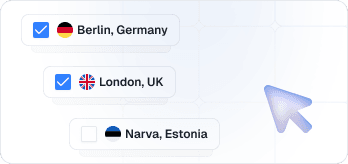
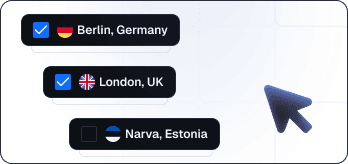
You can export All Proxies or a Custom selection. By default, All Proxies will include every proxy in your account. If you have proxies in multiple locations or only want to export specific ones, switch to Custom to pick the proxies you need. Filter by location group or select individual proxies. The interface shows your current selection.
File Format
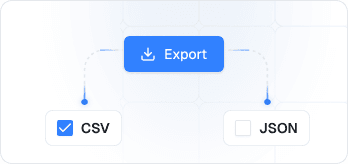
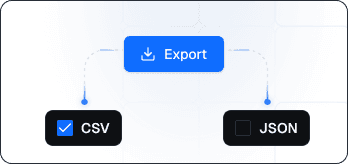
Choose between CSV (comma-separated values) or JSON for the export file. CSV is useful for opening in spreadsheet tools or quickly copying lists, while JSON is structured for programmatic use. Select the format that suits your needs – the preview will update the export button (e.g. "Export CSV" or "Export JSON").
Included Fields
You can include extra fields in the export for more detailed, customized data
- Protocol: If checked, export includes proxy protocol (HTTP or SOCKS5), adding a column or prefixing the address.
- Rotate URL: If checked, export includes each proxy’s rotate URL as a CSV column or JSON field for easy access.
Export Process
After selecting options, click Export (e.g., CSV) to download a file with one entry per proxy, including IP, port, username, password, and chosen fields.
Tip
You can then integrate this list into your applications or share it as needed.
Additional Tips
Quick Copy
All proxy addresses, credentials, and URLs have one-click copy buttons for easy integration into your applications.
Stay Updated
Use the Refresh button regularly to get the latest proxy status and network information, especially after IP rotations.
Mobile Networks
Carrier and network confirm you’re using genuine mobile residential IPs, essential for services blocking datacenter proxies.
Still have questions?
This documentation covers all the essential features of the My Proxies Dashboard. For additional support or questions, please contact our support team.